
Mistral AI
Connect to Mistral AI for advanced language model integration and AI-powered automation
Overview
Mistral AI provides frontier-level language models for building AI-powered applications. This connector enables seamless integration with the Mistral AI API, allowing you to leverage advanced language models in your automation workflows.
The connector supports flexible API access through Raw HTTP requests, enabling you to interact with any Mistral AI endpoint for text generation, chat completions, embeddings, and other AI capabilities.
API Information
The Base URL used for the Mistral AI connector is https://api.mistral.ai/.
More information can be found in the Mistral AI API documentation. Details regarding API usage, rate limits, and model capabilities can be found in their documentation.
Authentication
The Mistral AI connector uses API key authentication with Bearer token authorization.
Getting Your API Key
Follow these steps to obtain your Mistral AI API key:
Step 1: Sign in to Mistral AI Console
Navigate to console.mistral.ai and sign in with your account.
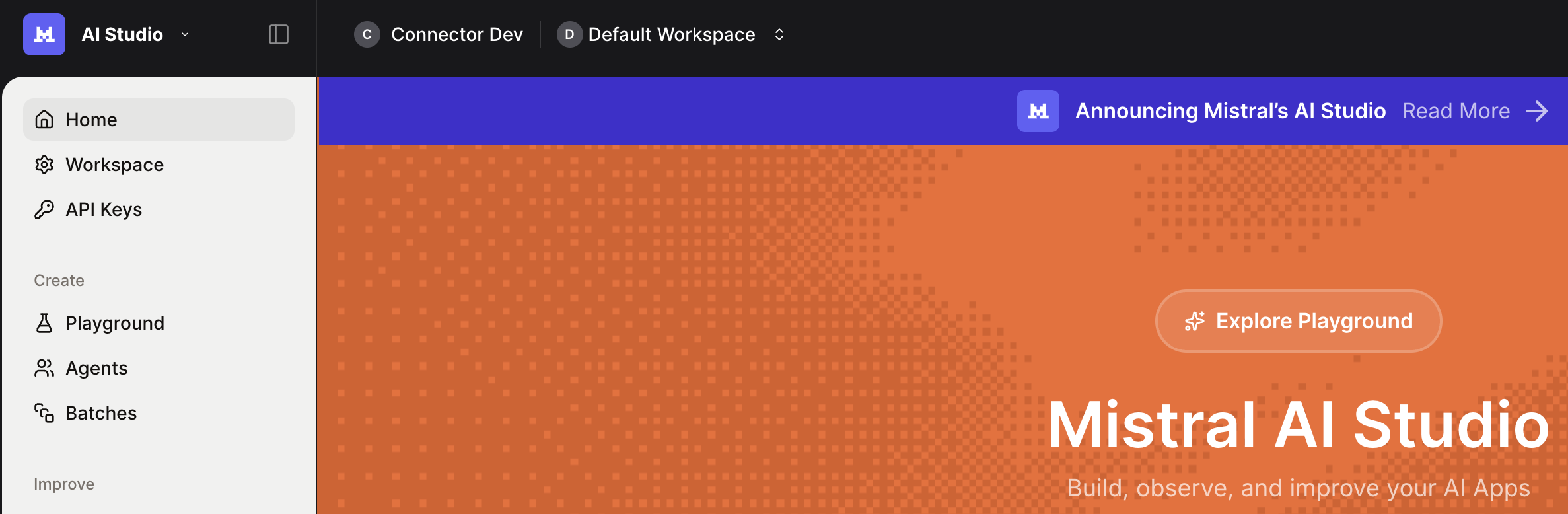
Step 2: Go to API Keys
Click on API Keys in the left sidebar navigation to access the API key management page.
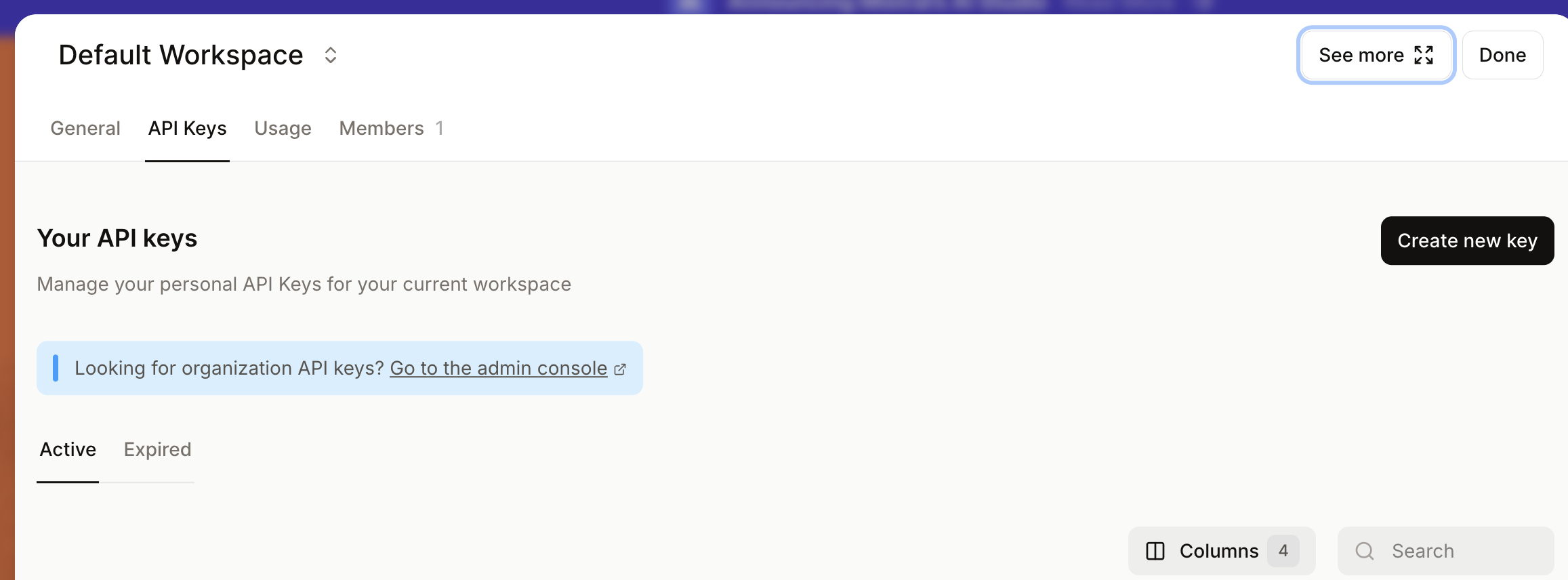
Step 3: Click "Create new API Key"
On the API Keys page, click the Create new key button in the top right corner.
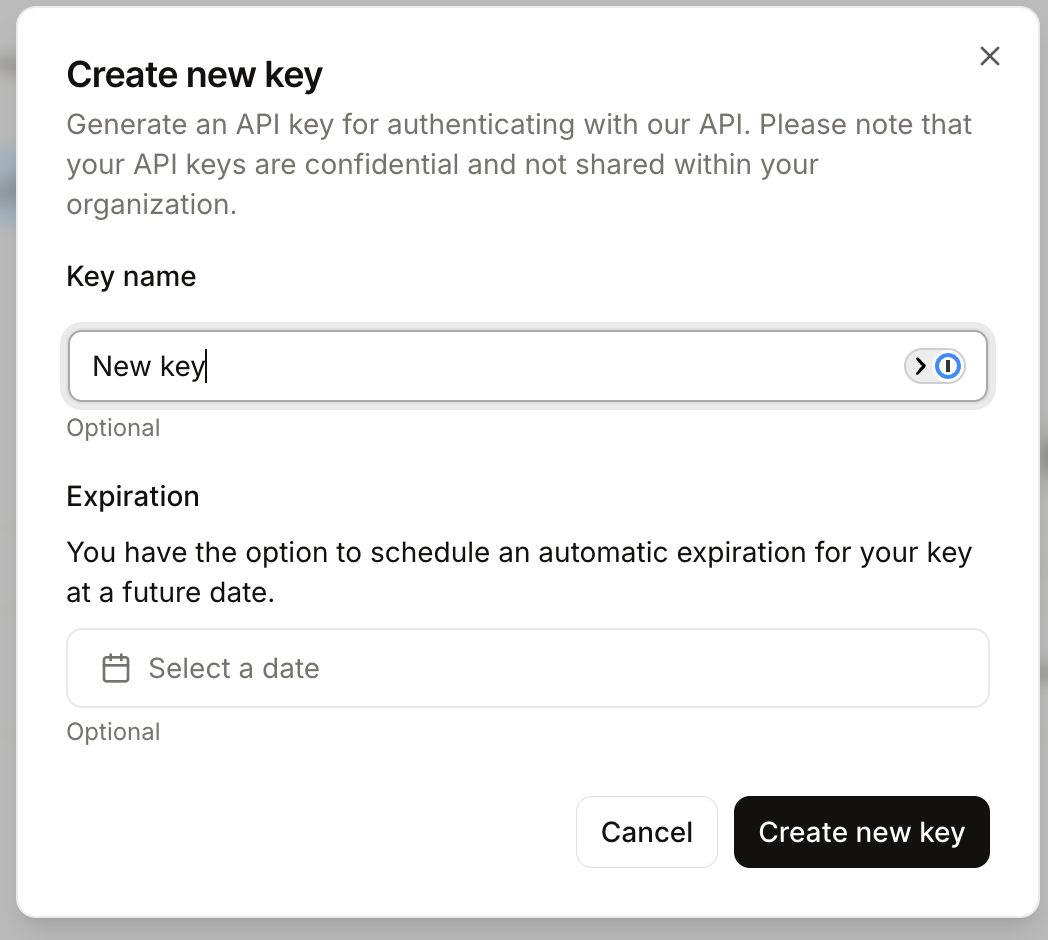
Step 4: Enter Name
In the dialog that appears:
- Enter a descriptive name for your API key (e.g., "Tray Integration")
- Optionally set an expiration date for the key
- Click Create new key
Step 5: Copy Created Key
Once the key is created, copy it immediately. The API key will only be shown once and cannot be retrieved later.
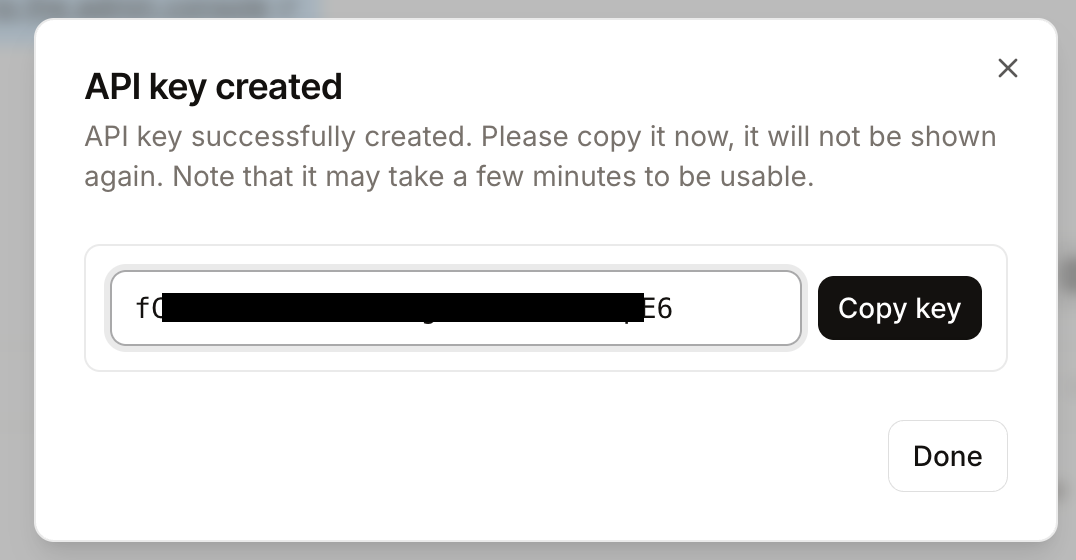
Store your API key securely. It will not be shown again after you close this dialog.
Configuring Authentication in Tray.io
To use the API key in your Tray.io workflows:
- Add the Mistral AI connector to your workflow
- Click on the connector and select the Auth tab
- Click New Authentication
- Select visibility (Personal or Organizational)
- Paste your API key in the API Key field
- Click Create authentication
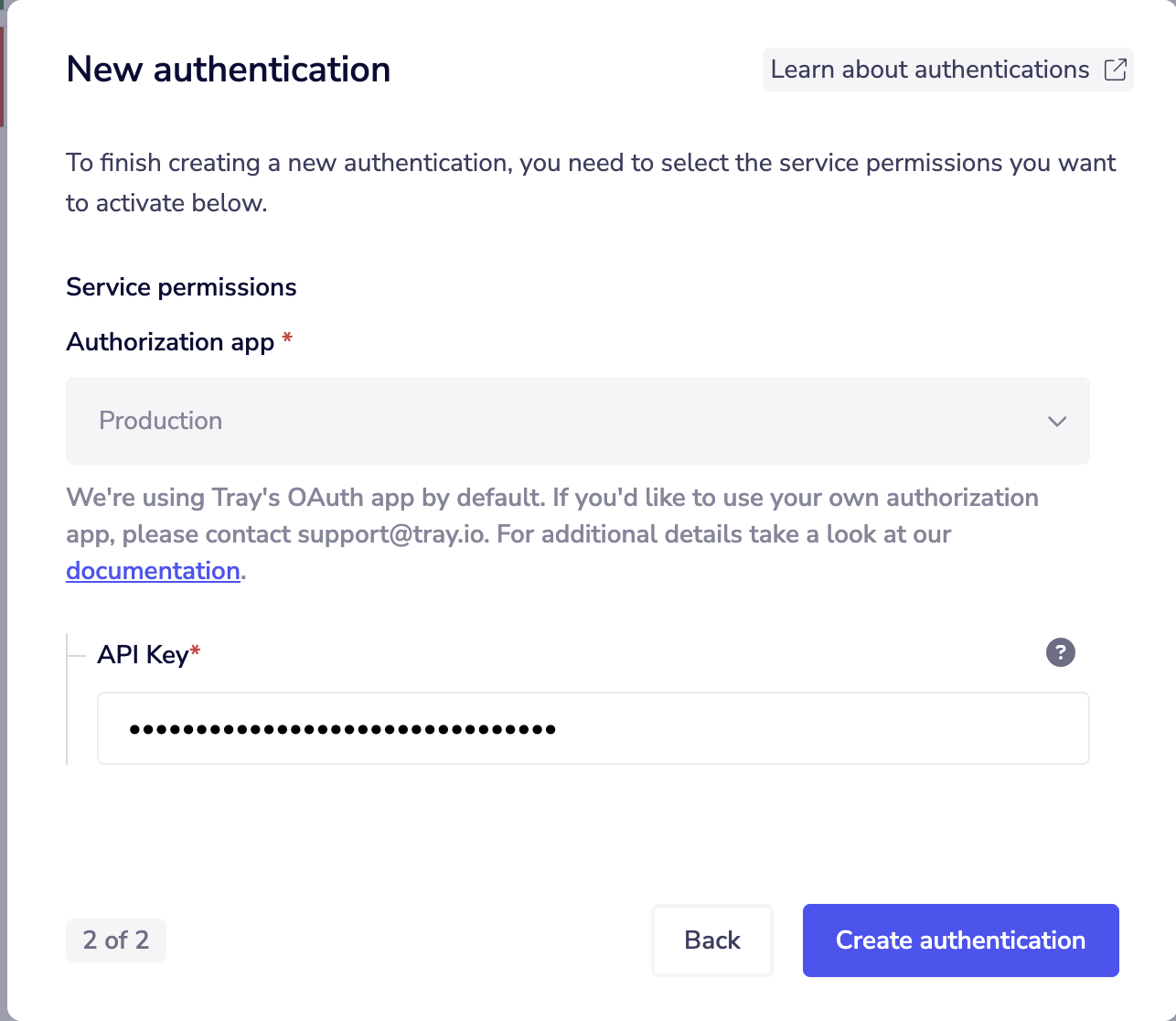
Store your API key securely in Tray's authentication system. Never share your API key publicly or commit it to version control.
Main Operations
The Mistral AI connector provides the following operation:
- Raw HTTP Request - Make custom HTTP requests to any Mistral AI API endpoint with full control over request parameters, headers, and body
This operation enables you to interact with all Mistral AI API endpoints, including:
- Chat completions
- Text generation
- Embeddings
- Model listing
- Fine-tuning operations
Use Cases
Common automation scenarios using the Mistral AI connector:
- Automated Content Generation - Generate articles, summaries, or marketing copy using Mistral AI language models
- Conversational AI Workflows - Build chat-based automation that responds intelligently to user inputs
- Text Analysis and Processing - Analyze customer feedback, classify content, or extract insights from text data
- AI-Powered Customer Support - Automate responses to common customer queries using language models
- Document Summarization - Generate concise summaries of long documents or reports
- Code Generation and Review - Use Mistral AI models to generate, review, or explain code
Available Operations
Please see the Full Operations Reference at the end of this page for complete details on all available operations.