Send Email
Set up email notifications for error alerts in Tray using Send Email connector
Overview
The Send Email connector is a basic utility designed exclusively for internal Tray workflow alerts and notifications. This connector has significant limitations and should be treated as a last-resort tool for internal system alerts only.
CRITICAL: Do NOT use this connector for:
- External communications to customers, partners, or any outside parties
- Embedded Solutions where emails reach external recipients
- Marketing campaigns or promotional emails
- Transactional emails (order confirmations, password resets, etc.)
- Any business-critical communications
Tray cannot guarantee deliverability, inbox placement, or compliance with email best practices when using this connector. Emails may be marked as spam, blocked, or fail to deliver entirely.
For any emails sent to your customers or external parties, you must use a dedicated Email Service Provider (ESP) connector such as SendGrid, MailChimp, AWS SES, or similar professional email services. These providers offer:
- Guaranteed deliverability and inbox placement
- Proper authentication (SPF, DKIM, DMARC)
- Compliance with email regulations (CAN-SPAM, GDPR)
- Dedicated IP addresses and domain reputation management
- Comprehensive delivery analytics and bounce handling
For any mail that is sent you will need to specify a Recipient, a Subject and Content.
Send Email templates
Please note that we have the following Send Email templates available: These will give you pre-configured best practice ways of working with Send Email and integrating it with other connectors.
Note on the 'From' email address
The Send Email connector does not allow you to edit the 'from' field.
This connector is intended solely for internal workflow alerts - for example, notifying your team when a workflow fails or requires attention. The inability to customize the sender address is another reason this connector is unsuitable for customer-facing communications.
For email marketing, transactional emails, or any customer-facing communications, you must use professional ESP connectors such as SendGrid or MailChimp. These services provide proper account management, sender authentication, deliverability guarantees, and accountability that the Tray Send Email connector cannot provide.
Content of the email connector
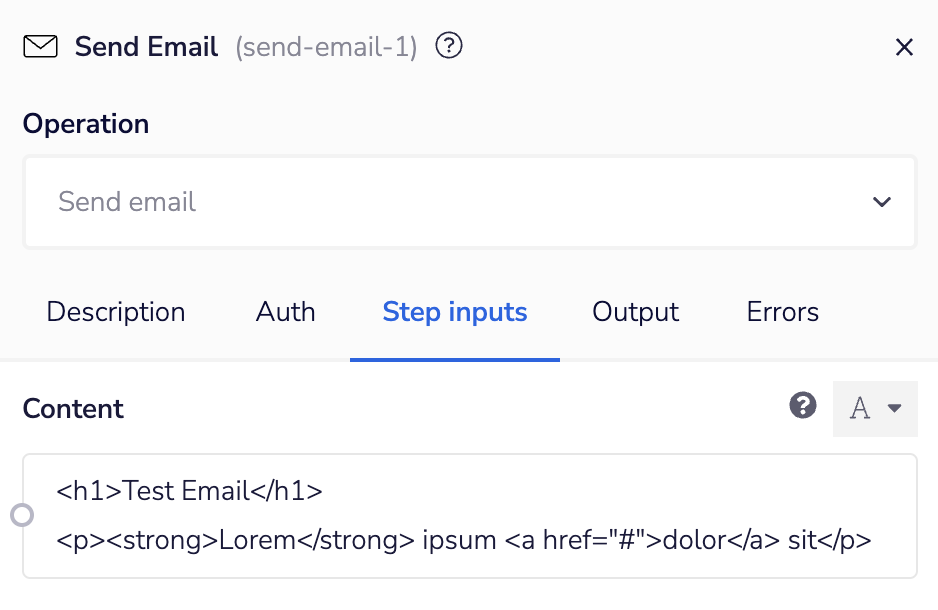
The content of the Send Email connector accepts HTML formatted content.
Example - setting up an email alert
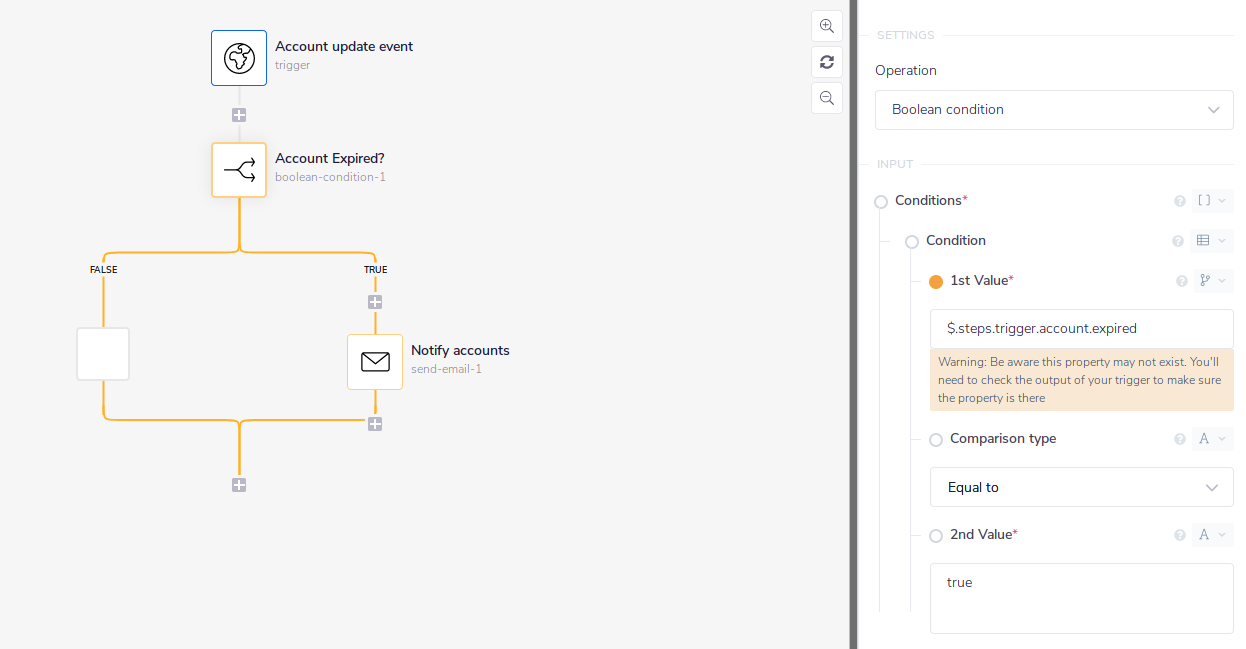
The below example shows how you might check the output of your workflow trigger to see if it indicates that an account has expired.
Note that this example shows using jsonpaths as the core Tray method of moving data from one connector to another. If you are unfamiliar with this method, please see one of our intro tutorials and our basic working with data guide.
This is done using a boolean connector to check if the trigger output indicates that an account has expired:
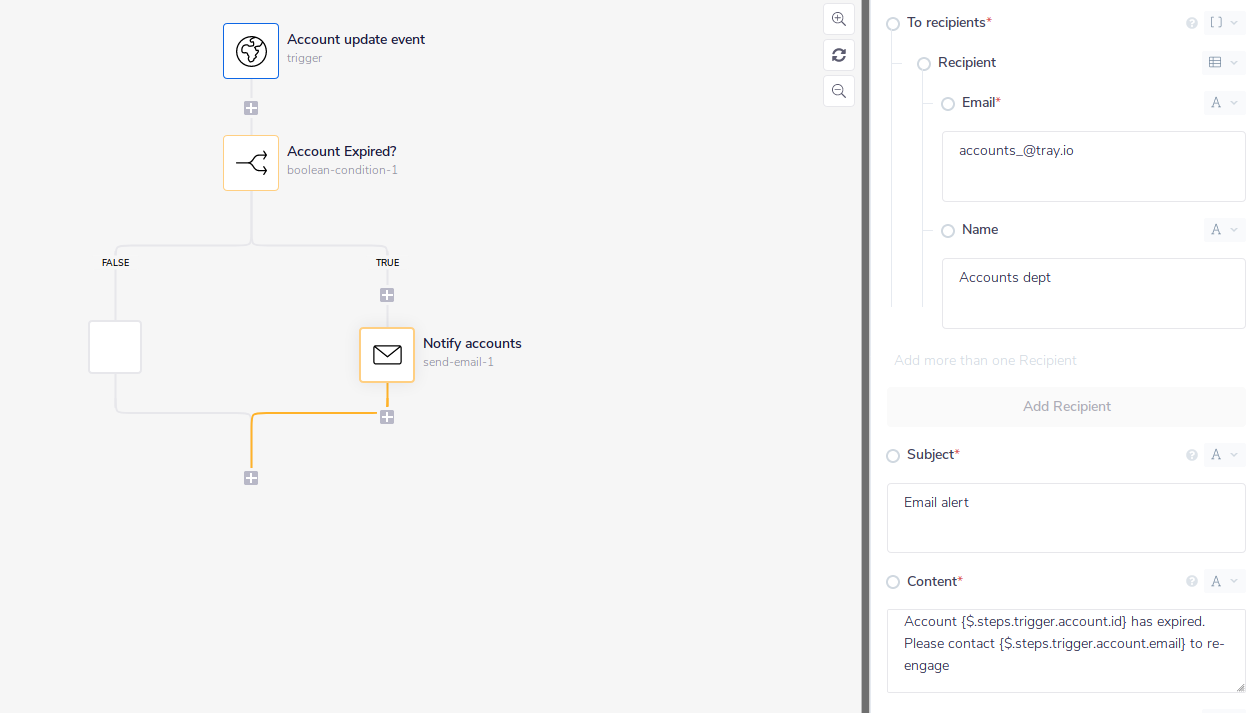
 If the account has expired then an email is sent. Note that the Content field can mix written text with data pulled in from the trigger step by enclosing the jsonpaths in
 { } as per the below examples of {$.steps.trigger.account.id} and {$.steps.trigger.account.email}: