BambooHR
BambooHR is a cloud-based human resources (HR) software service for small and mid-size businesses.
Overview
BambooHR is an American technology company that provides human resources software as a service. BambooHR's services include an applicant tracking system and an employee benefits tracker.
API Information
The BambooHR connector has the following Base URL: XXXXXX. More information can be found on their main API documentation (v1) site. Details regarding their API limitations can be found here.
BambooHR templates
Please note that we have the following BambooHR templates available: These will give you pre-configured best practice ways of working with BambooHR and integrating it with other connectors. However, please continue to at least read the Authentication setup instructions on this page to enable you to get started with using BambooHR.
Authentication
Version 5.0+ OAuth 2.0 Authentication
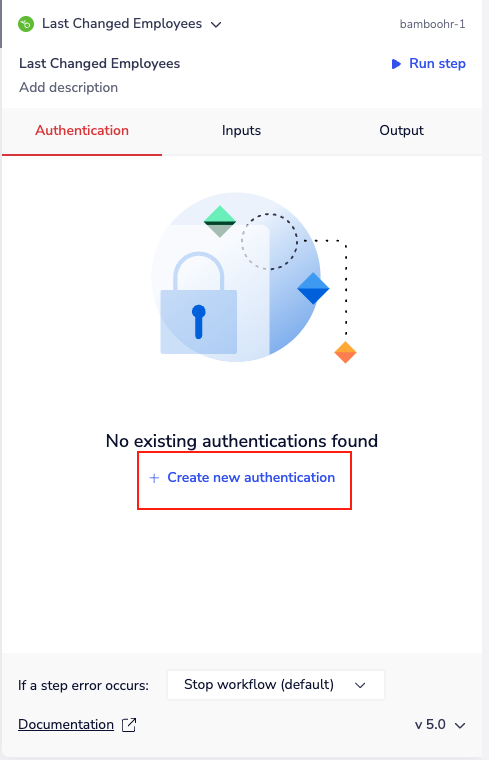
Within the workflow builder, click on the BambooHR connector to display the connector properties panel. Select the Authentication tab and click on the Create new authentication button.
In the Tray.io authentication pop-up modal, name your authentication in a way that makes it easy to identify within a potentially large list (for example, whether it's a Sandbox or Production authentication).
Consider who and how many people will need access to this authentication when choosing where to create it (Personal vs Organisational).
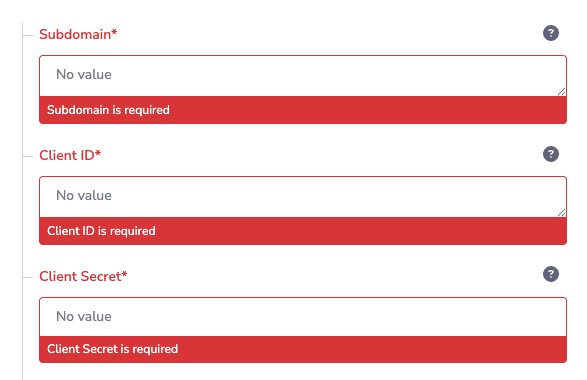
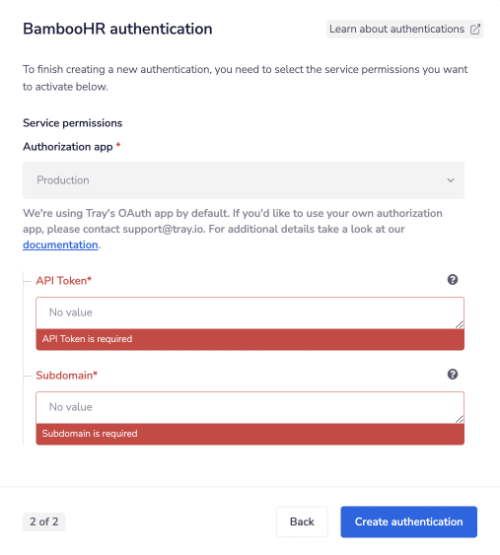
The next page will ask you for your Client ID, Client Secret, and Subdomain.
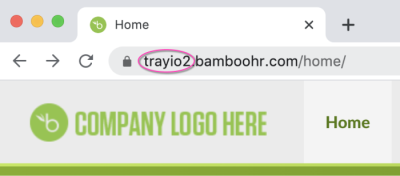
Your subdomain can be found in the first section of your BambooHR instance URL:
Obtaining OAuth 2.0 Credentials from BambooHR
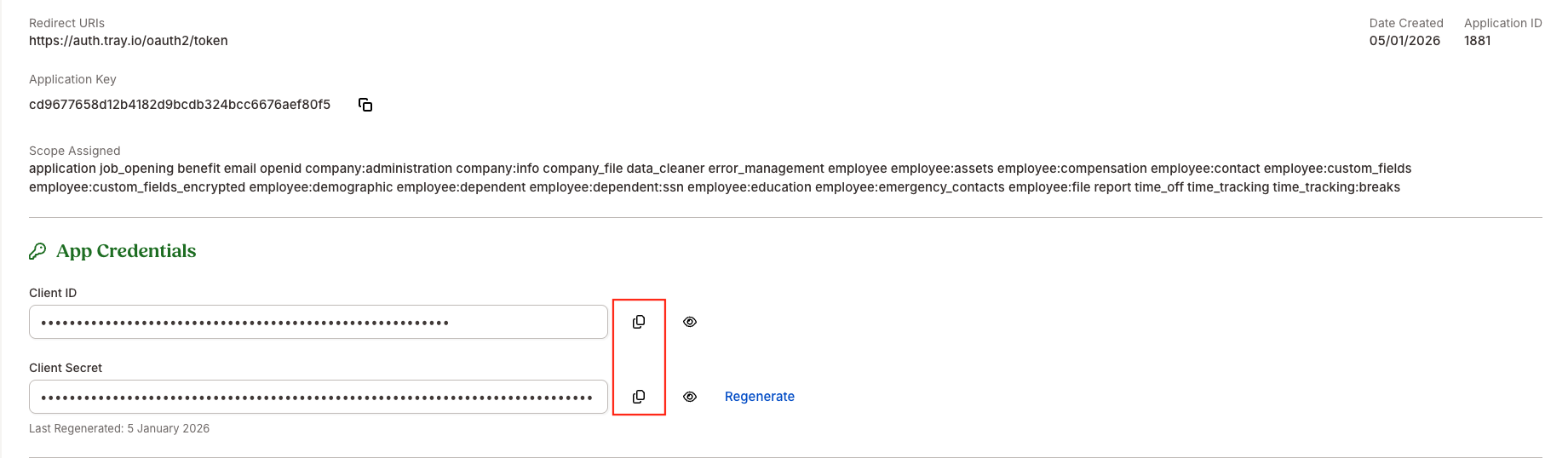
To get your Client ID and Client Secret, navigate to the BambooHR Developer Console: https://developers.bamboohr.com
After logging in, add a new application if you don't already have one.
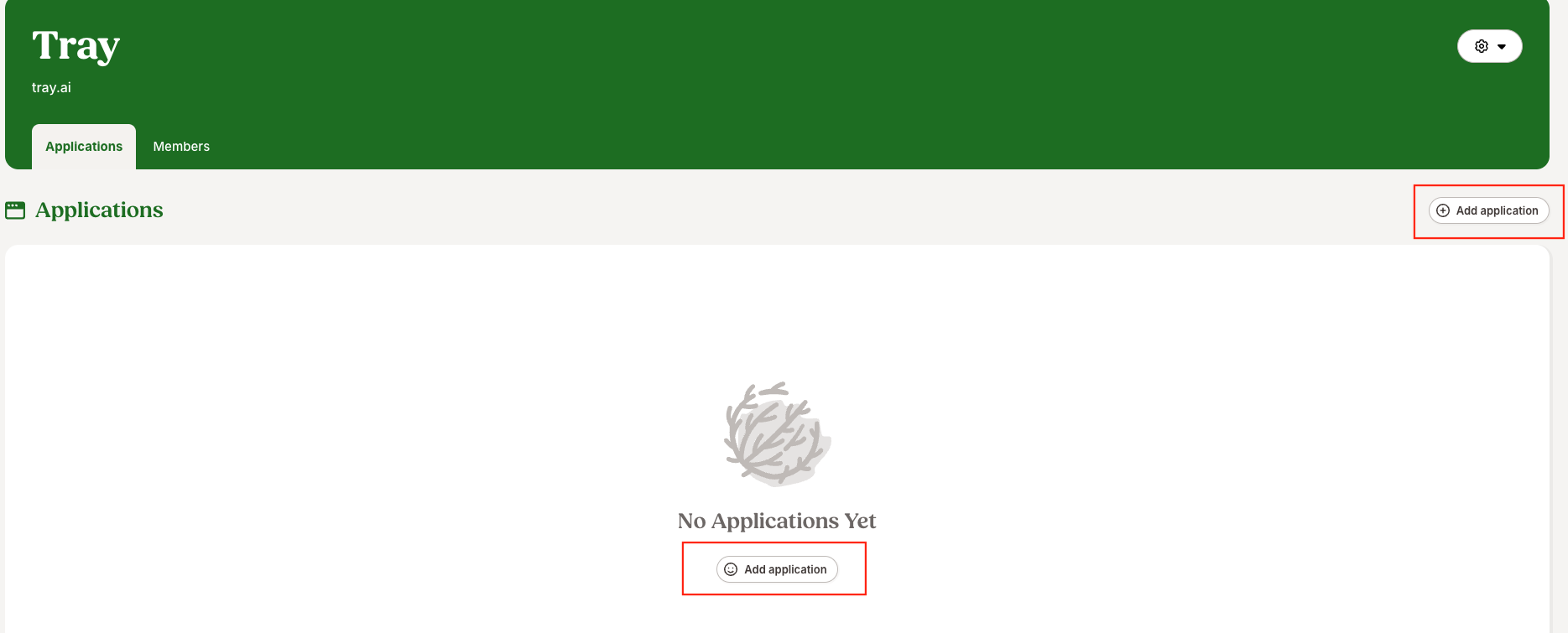
Select the application you want to use, which will take you to the app's dashboard. First, add the callback URL by clicking on App details.
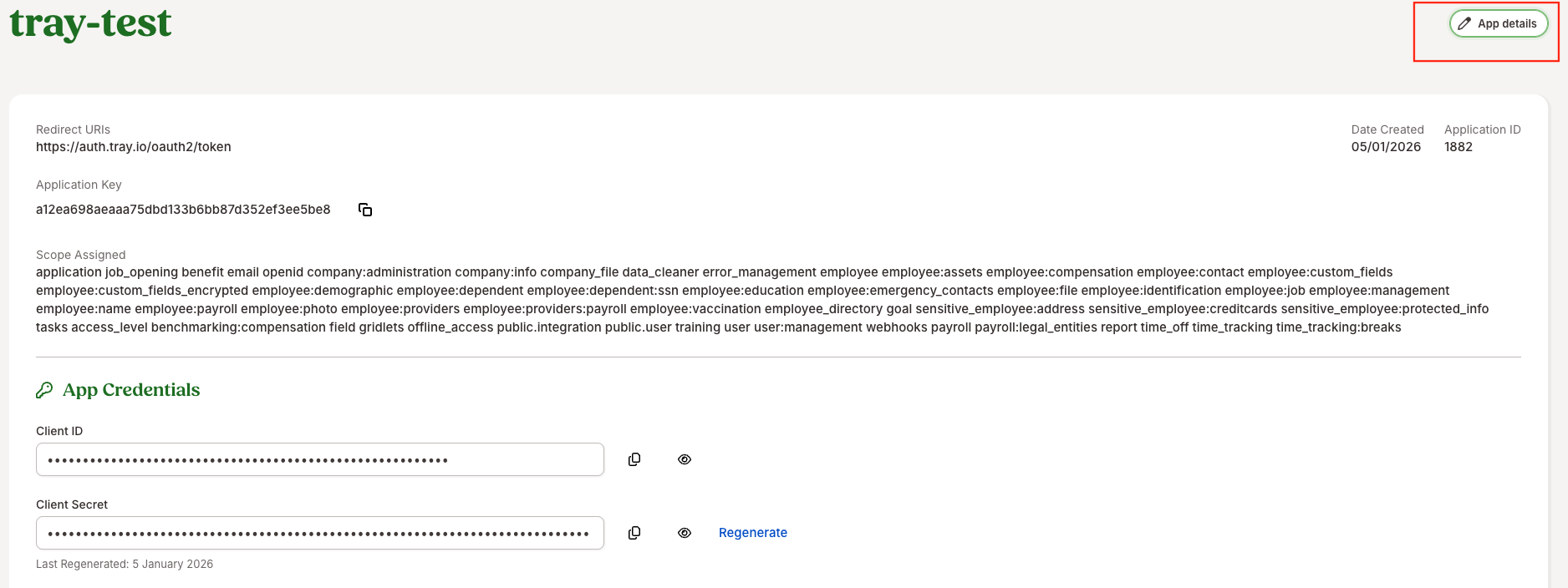
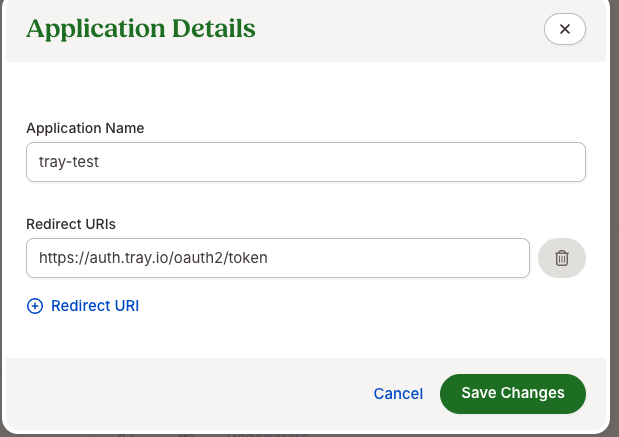
Add the callback URL as: https://auth.tray.io/oauth2/token
Next, configure the required scopes for the application by clicking Select Scopes.
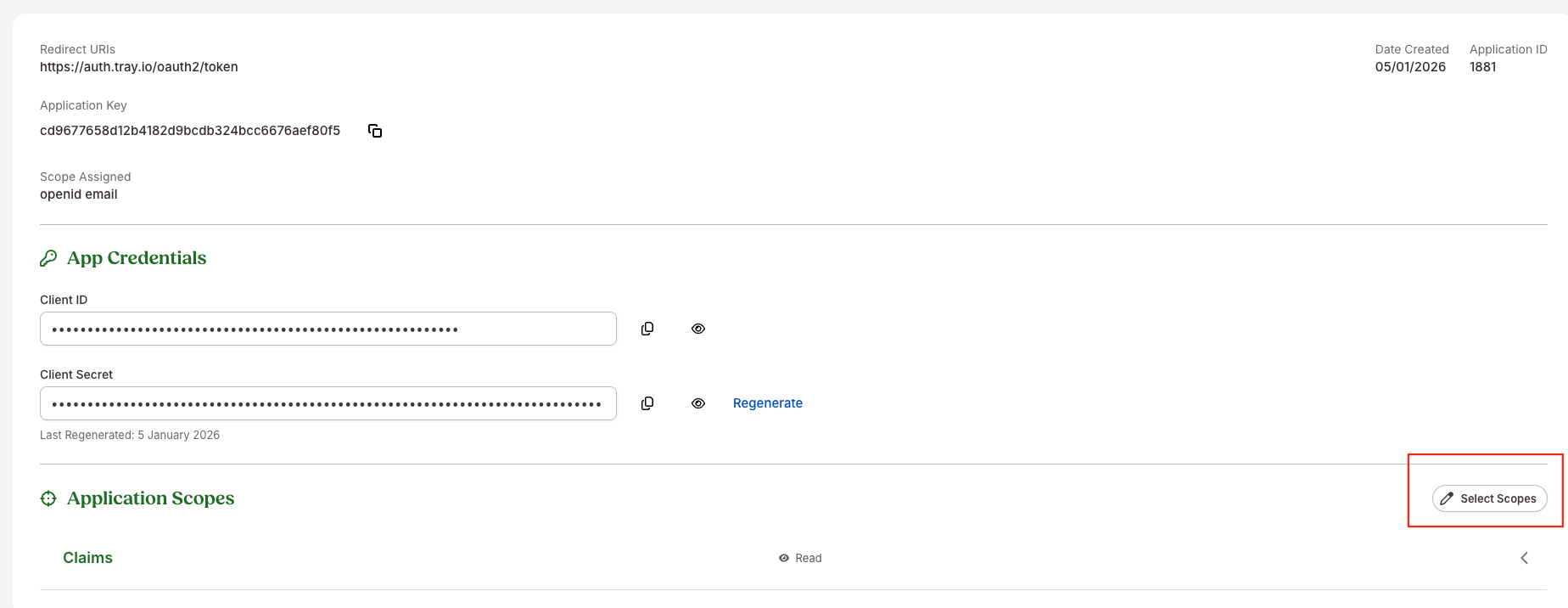
Select the scopes you need for your integration and make sure to click Save.
Finally, copy your Client ID and Client Secret from the application dashboard.
Completing OAuth 2.0 Authorization
Fill in the Client ID, Client Secret, and your subdomain in the Tray.io authentication pop-up window. Tick any scopes you want to be sent on the request(make sure you don't send any scopes that you didn't previously configured in the Bamboo app) and add extra scopes in the Extra permissions scope field if needed, then click the Create authentication button.
You will be prompted to authorize and consent access to the application. Click Allow to complete the authorization.
Your connector authentication setup should now be complete. Please run the simplest operation available to test and verify that you can retrieve data as expected.
API Token Authentication
Within the builder, click on the BambooHR connector to display the connector properties panel. Select the Auth tab and click on the New authentication button.
In the Tray authentication pop-up modal name your authentication in a way that will quickly identify it within a potentially large list. For example whether it is a Sandbox or Production auth, etc.
Consider who/ how many people will need access to this authentication when choosing where to create this authentication ('Personal' vs 'Organisational').
The next page asks you for your API Token and Subdomain.
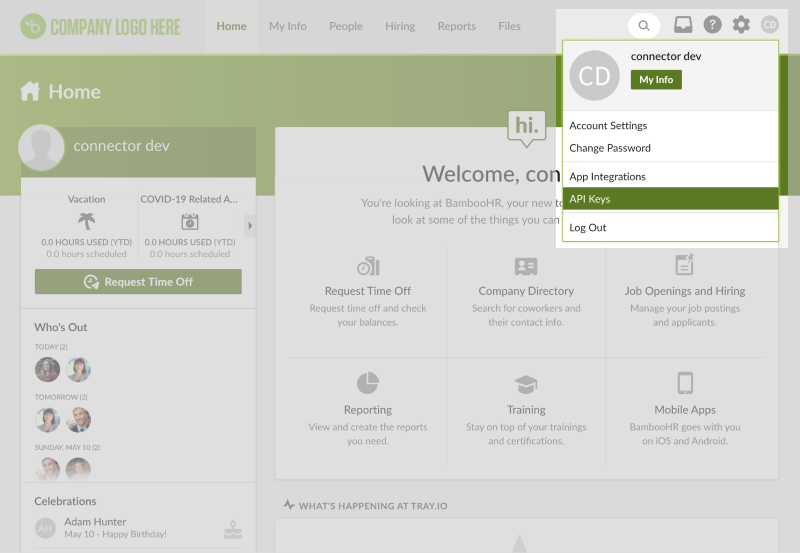
 To generate an API key you need to log in and click your name in the upper right-hand corner of any page. If you have sufficient permission there will be an 'API Keys' option displayed in the menu.
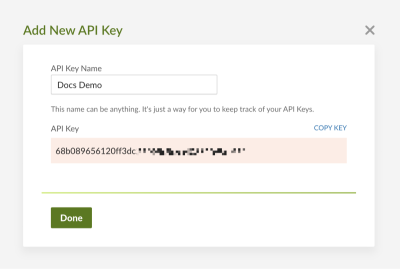
 Generate a new API key. Make sure to copy it carefully as viewing it again (for security reasons) will not be possible.
 Your subdomain can be found within the first section of your BambooHR URL:
Once you have added these fields to your Tray authentication pop-up window click the Create authentication button.
Your connector authentication setup should now be complete. Please run the simplest operation available to test and make sure you can retrieve data as expected.
Your subdomain can be found within the first section of your BambooHR URL:
Once you have added these fields to your Tray authentication pop-up window click the Create authentication button.
Your connector authentication setup should now be complete. Please run the simplest operation available to test and make sure you can retrieve data as expected.
Available Operations
The examples below show one or two of the available connector operations in use. Please see the Full Operations Reference at the end of this page for details on all available operations for this connector.
Example usage
TRAY POTENTIAL: Tray.io is extremely flexible. By design there is no fixed way of working with it - you can pull whatever data you need from other services and work with it using our core and helper connectors. This demo which follows shows only one possible way of working with Tray.io and the BambooHR connector. Once you've finished working through this example please see our Introduction to working with data and jsonpaths page and Data Guide for more details.
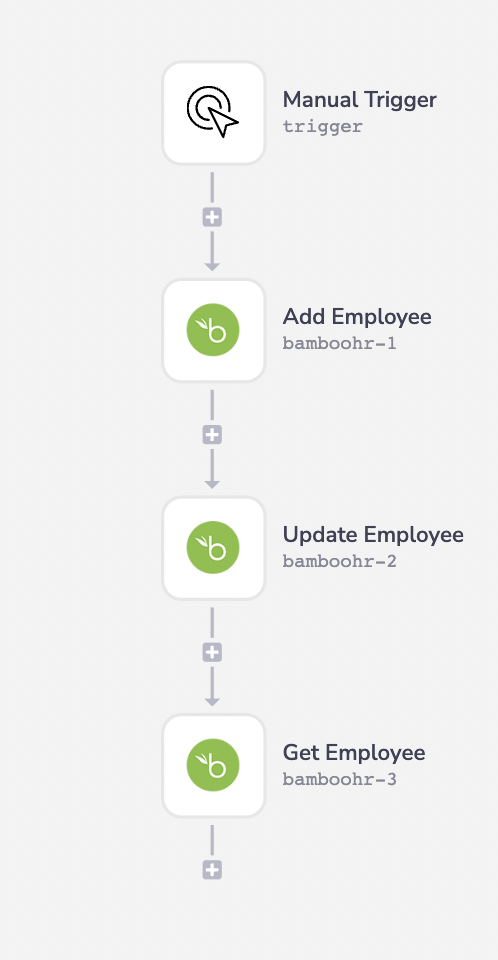
The instructions below will take you through how to add, update and get an employee using the BambooHR connector. The workflow logic is as follows:
- Setup using a manual trigger and use the first BambooHR connector to add a new employee.
- Use the next step to update said employees details.
- Get the newly updated details of said employee.
The final outcome should look like this: