
Pipedrive
This connector was updated from version 4.2 to 5.0. The new version uses Pipedrive API v2 and includes significant changes to operation names, endpoints, and HTTP methods. Review the breaking changes below before updating your workflows.
Overview
Pipedrive CRM enables businesses to plan their sales activities and monitor deals. It works as an account-management tool with the ability to assist with marketing and the entire sales process.
API Information
The Base URL used for the Pipedrive connector is https://api.pipedrive.com/api/v2.
More information can be found on their API documentation (v1.0) site. API rate limiting information is available in their rate limiting documentation.
The connector now uses Pipedrive API v2. The v2 API provides enhanced functionality and follows modern REST conventions with improved consistency across endpoints.
Breaking Changes in Version 5.0
Version Summary
The Pipedrive connector has been migrated from version 4.2 to 5.0 which uses API v2. This update includes:
- API Version: v1 → v2 (base URL changed from
/v1to/api/v2) - Operations: 25 removed, 65 new operations added
- Naming Convention: Standardized operation names (
create_*→add_*,list_people→list_persons) - HTTP Methods: Update operations changed from PUT to PATCH
Terminology Updates
Operation names have been standardized to follow consistent naming patterns:
| Old Operation Name | New Operation Name | Change Type |
|---|---|---|
create_activity | add_activity | Naming convention |
create_deal | add_deal | Naming convention |
create_organization | add_organization | Naming convention |
create_person | add_person | Naming convention |
list_people | list_persons | Terminology standardization |
get_pipeline_stage | get_stage | Simplified naming |
list_pipeline_stages | list_stages | Simplified naming |
find_organizations_by_name | search_organization | Consistent search naming |
find_people | search_persons | Consistent search naming |
perform_search | search_item | Clearer naming |
perform_search_using_specific_field | search_item_by_field | Clearer naming |
Removed Operations
The following 25 operations have been removed in version 5.0:
create_activity- Useadd_activityinsteadcreate_deal- Useadd_dealinsteadcreate_note- Note operations no longer supported in v2 APIcreate_organization- Useadd_organizationinsteadcreate_person- Useadd_personinsteadfind_organizations_by_name- Usesearch_organizationinsteadfind_people- Usesearch_personsinsteadfind_users- User search no longer availableget_deals_timeline- Deals timeline endpoint removed in v2 APIget_pipeline_stage- Useget_stageinsteadget_user- Useget_user_followersfor user-related operationslist_activity_types- Activity types listing removedlist_deal_fields- Deal fields listing removedlist_deals_associated_with_a_person- Functionality integrated into other operationslist_organization_deals- Uselist_dealswith organization filterlist_organization_fields- Organization fields listing removedlist_people- Uselist_personsinsteadlist_person_fields- Person fields listing removedlist_pipeline_stages- Uselist_stagesinsteadlist_users- User listing removedmerge_with_deal_id- Merge operations removed in v2 APImerge_with_person_id- Merge operations removed in v2 APIperform_search- Usesearch_iteminsteadperform_search_using_specific_field- Usesearch_item_by_fieldinstead
Added Operations
Version 5.0 introduces 65 operations, including:
Activities
add_activity,delete_activity,get_activity,list_activities,update_activity
Deals
add_deal,convert_deal_to_lead,delete_deal,get_deal,get_deal_conversion_status,list_archived_deals,list_deals,search_deals,update_deal
Deal Products
add_deal_product,delete_deal_product,get_deal_products,list_deals_products,update_deal_product
Deal Followers
add_deal_follower,delete_deal_follower,get_deal_followers,get_deal_followers_changelog
Discounts
add_additional_discount,delete_additional_discount,get_additional_discounts,update_additional_discount
Installments
add_installment,delete_installment,list_installments,update_installment
Organizations
add_organization,delete_organization,get_organization,list_organizations,search_organization,update_organization
Organization Followers
add_organization_follower,delete_organization_follower,get_organization_followers,get_organization_followers_changelog
Persons
add_person,delete_person,get_person,list_persons,search_persons,update_person
Person Followers
add_person_follower,delete_person_follower,get_person_followers,get_person_followers_changelog
Pipelines
add_pipeline,delete_pipeline,get_pipeline,list_pipelines,update_pipeline
Stages
add_stage,delete_stage,get_stage,list_stages,update_stage
Products
add_product,delete_product,get_product,list_products,search_products,update_product
Product Followers
add_product_follower,delete_product_follower,get_product_followers,get_product_followers_changelog
Product Variations
add_product_variation,delete_product_variation,get_product_variations,update_product_variation
Leads
convert_lead_to_deal,get_lead_conversion_status,search_leads
Users
get_user_followers
HTTP Method Changes
Update operations now use PATCH instead of PUT for partial updates:
update_activity: PUT → PATCHupdate_deal: PUT → PATCHupdate_organization: PUT → PATCHupdate_person: PUT → PATCH
Migration Guide
Follow these steps to migrate your workflows to version 5.0:
-
Audit Your Workflows
- Identify all Pipedrive operations currently in use
- Document the purpose and dependencies of each operation
-
Map Operation Names
- Use the Terminology Updates table to find renamed operations
- Update operation references in your workflows
-
Check for Removed Operations
- Review the Removed Operations list
- Identify alternatives for any removed operations you use
- Update workflows to use replacement operations
-
Verify Parameters
- Review input parameters for each operation
- Update any parameter names or structures that changed
- Test parameter values with the new API v2 format
-
Update HTTP Methods
- Change PUT operations to PATCH for updates
- Verify request body structure matches PATCH requirements
-
Test in Development
- Create a test workflow with updated operations
- Verify all operations function correctly
- Check response data formats
-
Update Authentication
- Reconfigure OAuth 2.0 if needed (see Authentication section)
- Verify access scopes match your requirements
-
Deploy Gradually
- Update workflows in phases
- Monitor for errors or unexpected behavior
- Keep backup of old workflows until migration is complete
Authentication
Pipedrive uses OAuth 2.0 for authentication. Follow these steps to set up authentication for your Tray.io workflows.
Prerequisites
- Active Pipedrive account with admin access
- Ability to create OAuth applications in Pipedrive
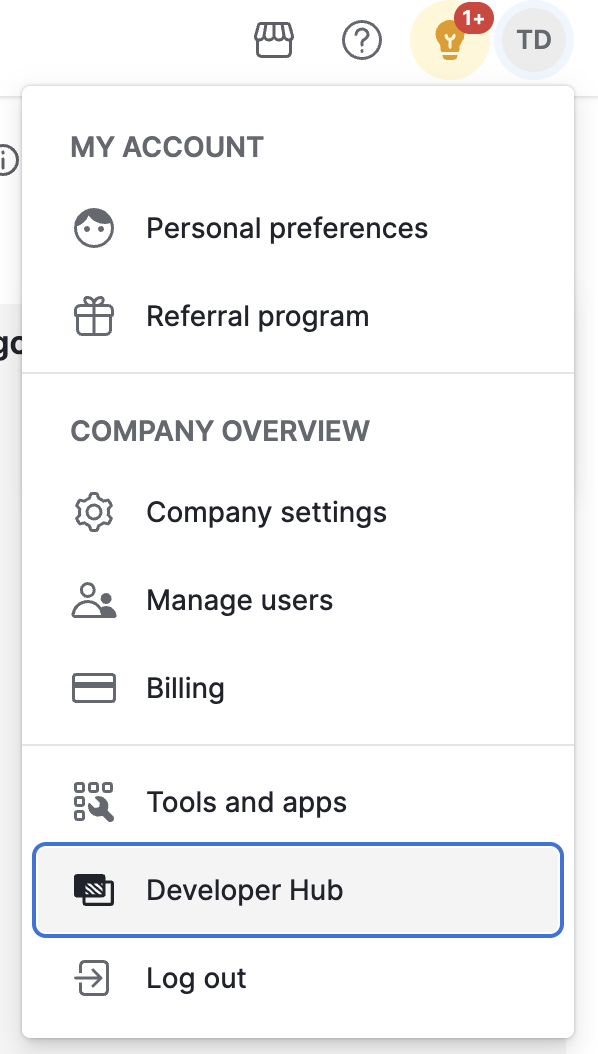
Step 1: Access Developer Hub
Log into your Pipedrive account and navigate to Developer Hub:
- Click your profile icon in the top right corner
- Select Tools and apps from the dropdown menu
- Click Developer Hub
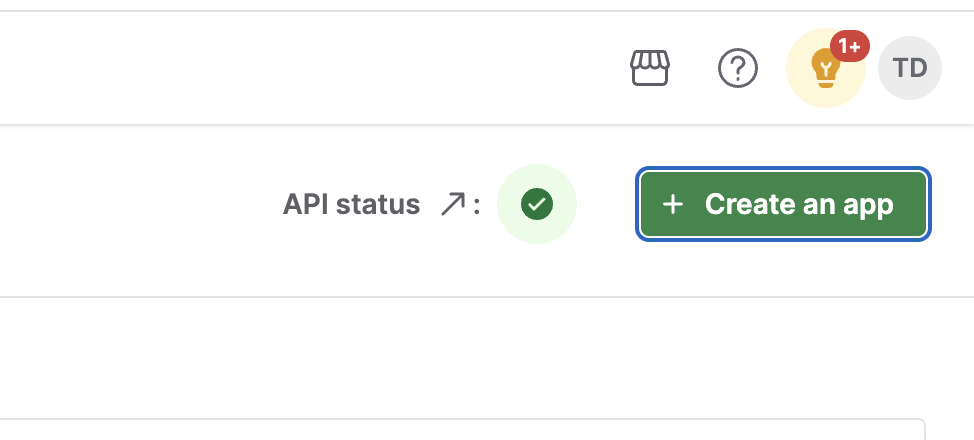
Step 2: Create New App
In the Developer Hub, create a new OAuth application:
- Verify API status shows as active (green checkmark)
- Click + Create an app button
Step 3: Select App Type
Choose the appropriate app type for your integration:
- Select Private app for Tray.io integration
- Click Create private app
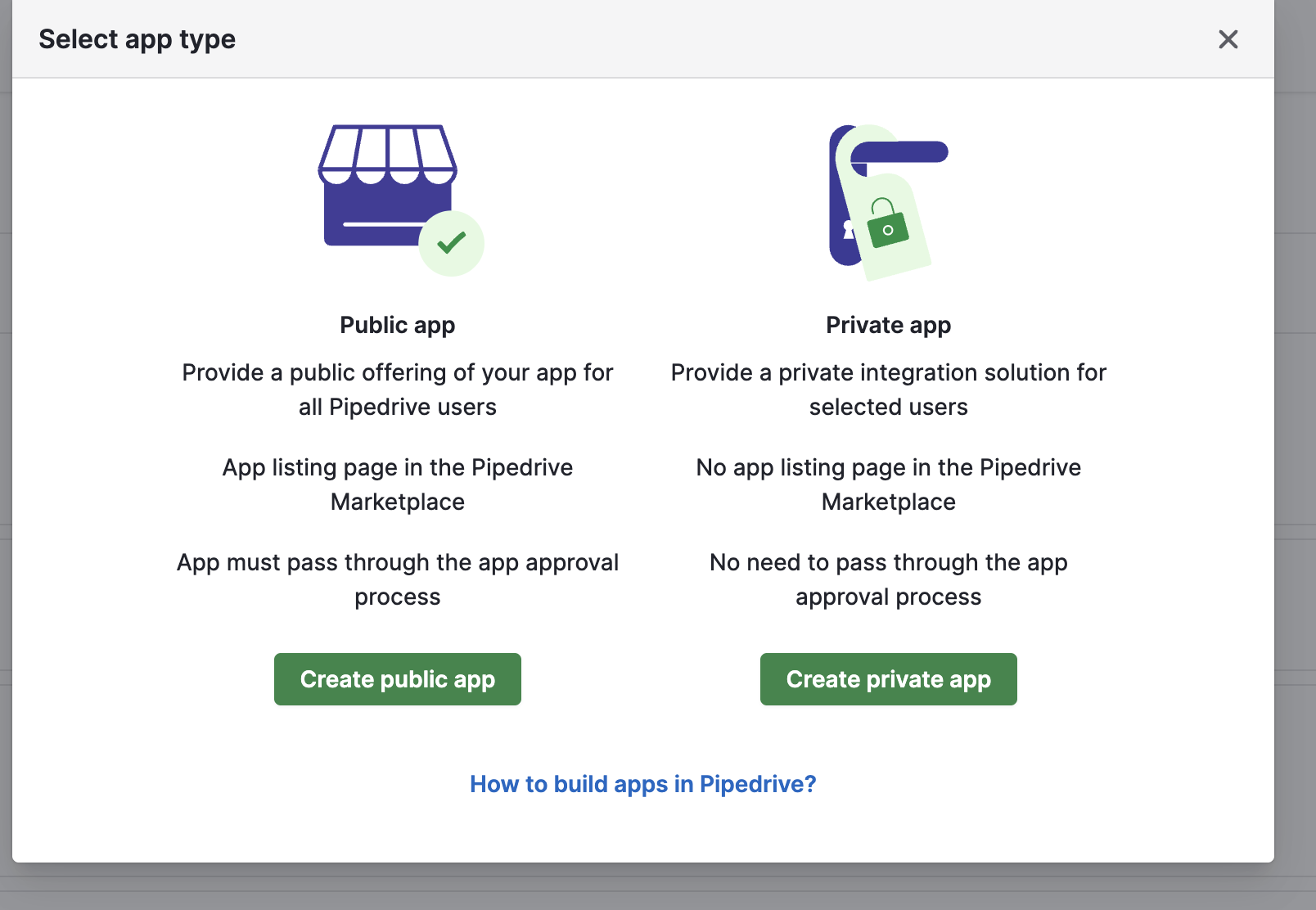
Private apps do not require marketplace approval and are ideal for internal integrations. They provide the same API access as public apps without the review process.
Step 4: Configure Basic Information
Enter the basic configuration for your OAuth app:
- App name: Enter a descriptive name (e.g., "Tray.io Integration")
- Callback URL: Enter your Tray.io OAuth callback URL:
https://auth.tray.io/oauth2/token - Verify the app type is set to PRIVATE
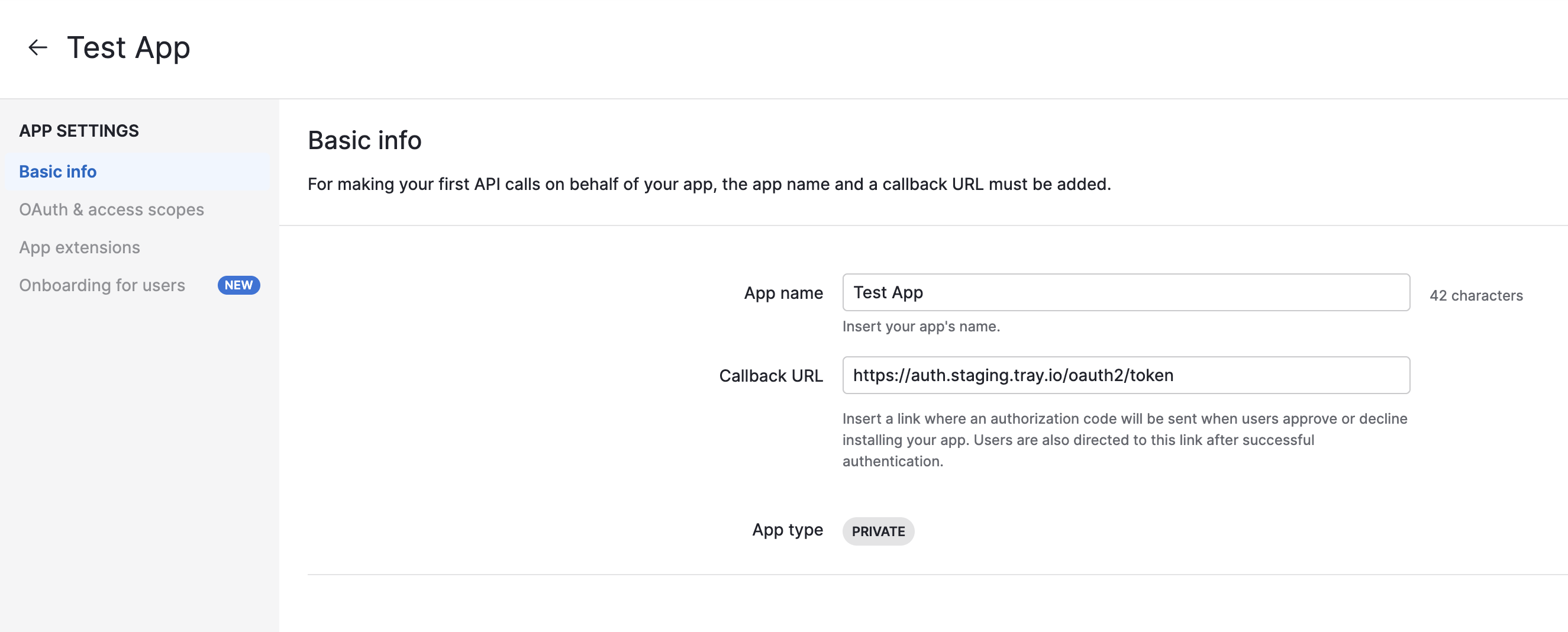
The callback URL must exactly match the Tray.io OAuth callback URL. Incorrect callback URLs will cause authentication to fail.
Step 5: Configure Access Scopes
Navigate to the OAuth & access scopes tab and configure permissions:
- Select the data types your integration needs to access
- For each data type, choose access level:
- Read only: View data only
- Full access: Create, read, update, and delete
Common scopes for workflows:
- Access to basic information: Always required
- Deals: Full access for deal management
- Activities: Full access for activity tracking
- Contacts (Persons/Organizations): Full access for CRM operations
- Products: Read only or Full access based on needs
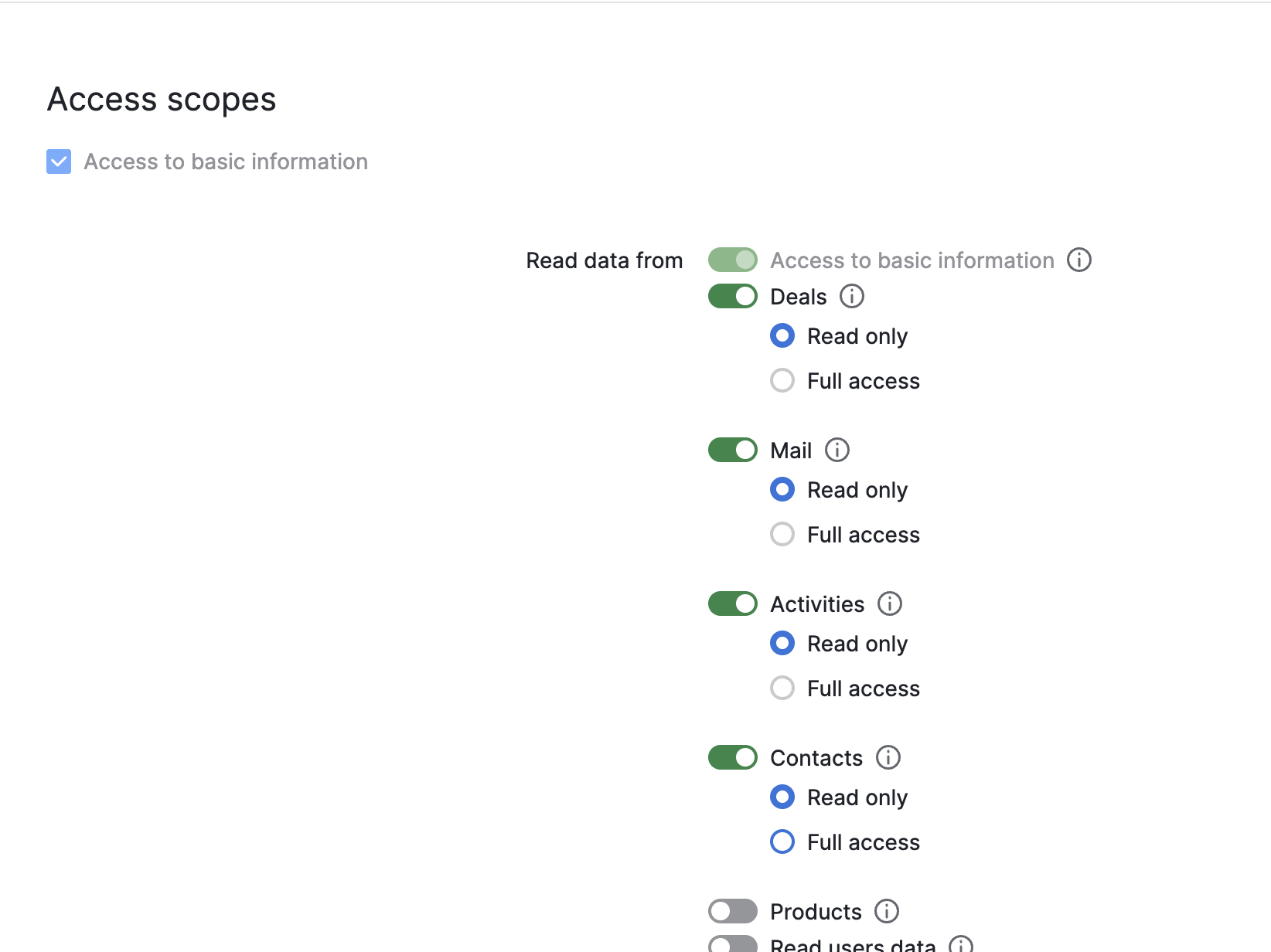
Select only the scopes your integration requires. This follows the principle of least privilege and improves security.
Step 6: Retrieve OAuth Credentials
After configuring scopes, retrieve your OAuth credentials:
- Navigate back to the OAuth & access scopes section
- Copy the Client ID
- Click Show to reveal the Client secret
- Copy the Client secret
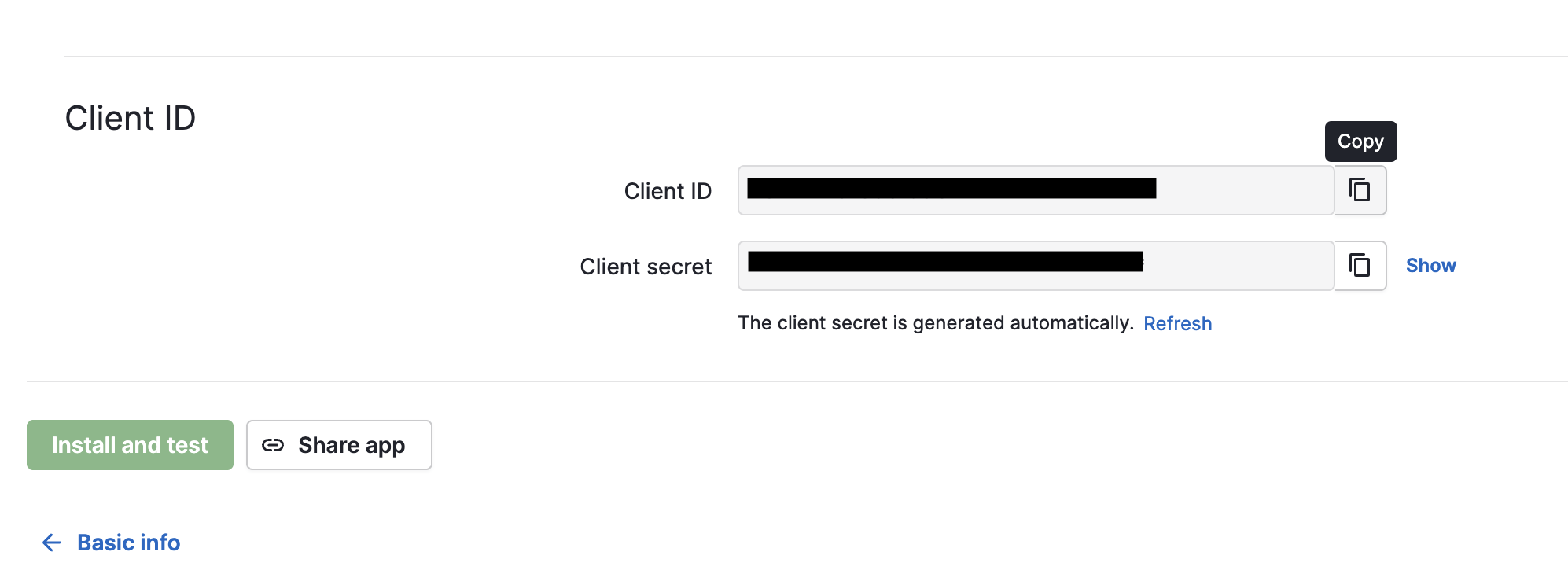
Store your Client secret securely. It provides full access to your Pipedrive data and should never be shared publicly or committed to version control.
Step 7: Save App Configuration
Save your app configuration:
- Click the Save button in the top right
- Wait for confirmation that settings were saved

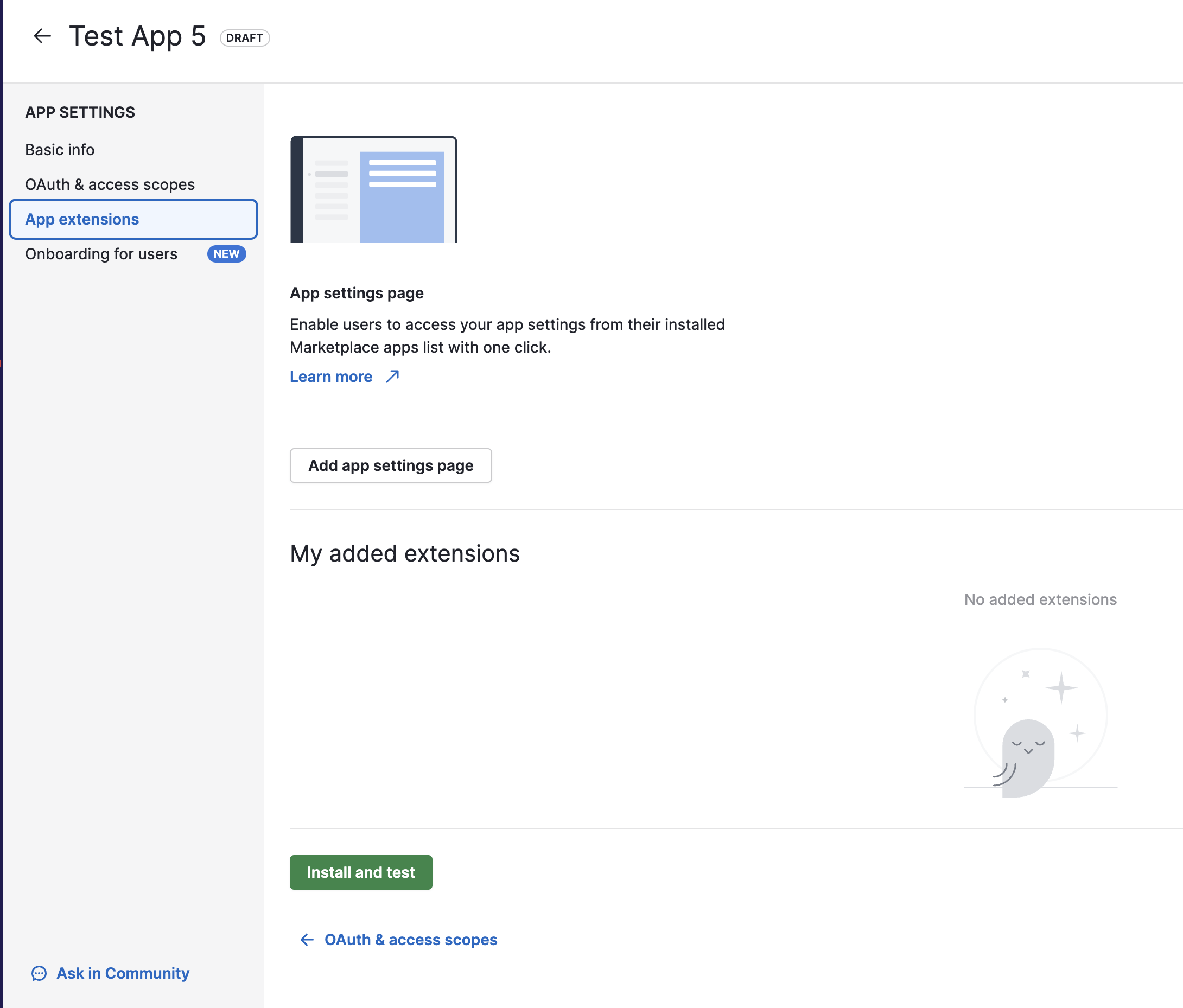
Step 8: Install and Test (Optional)
Optionally test your OAuth app:
- Navigate to the App extensions tab
- Click Install and test button
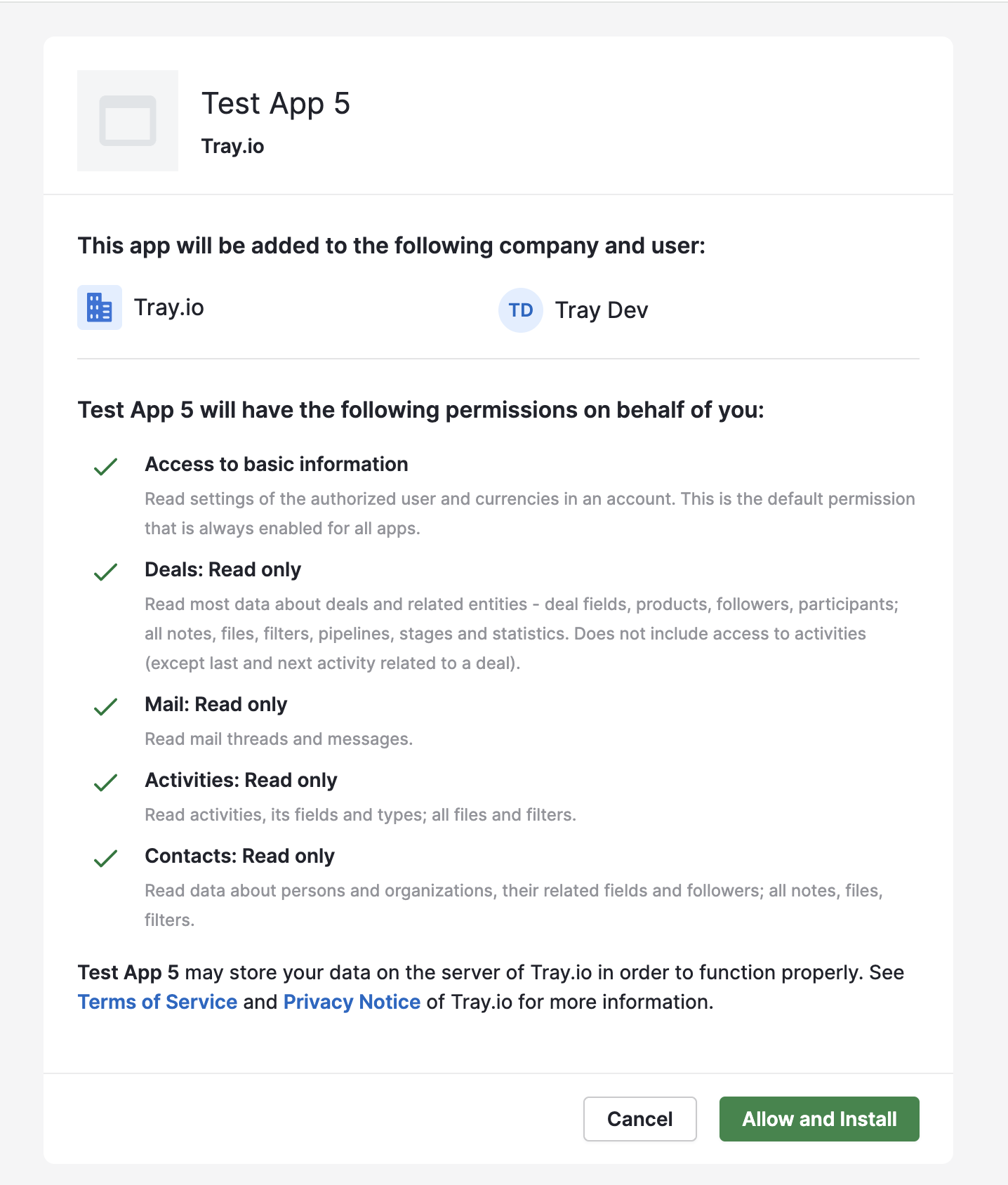
Step 9: Authorize Access
When prompted, authorize the OAuth app:
- Review the permissions requested
- Verify the company and user are correct
- Click Allow and Install
Configure Authentication in Tray.io
After setting up your OAuth app in Pipedrive, configure authentication in Tray.io:
- In your Tray.io workflow, add the Pipedrive connector
- Click the Auth tab
- Click New Authentication
- Enter authentication details:
- Name: Descriptive name (e.g., "Pipedrive Production")
- Visibility: Choose Personal or Organizational
- Client ID: Paste the Client ID from Pipedrive
- Client Secret: Paste the Client secret from Pipedrive
- Click Save and complete the OAuth flow
- Grant permissions when prompted
Tray.io will test the authentication and display a success indicator.
Alternative: API Token Authentication
Pipedrive also supports API token authentication for simpler use cases:
- Navigate to Personal preferences > API tab
- Copy your personal API token
- Use this token for API authentication
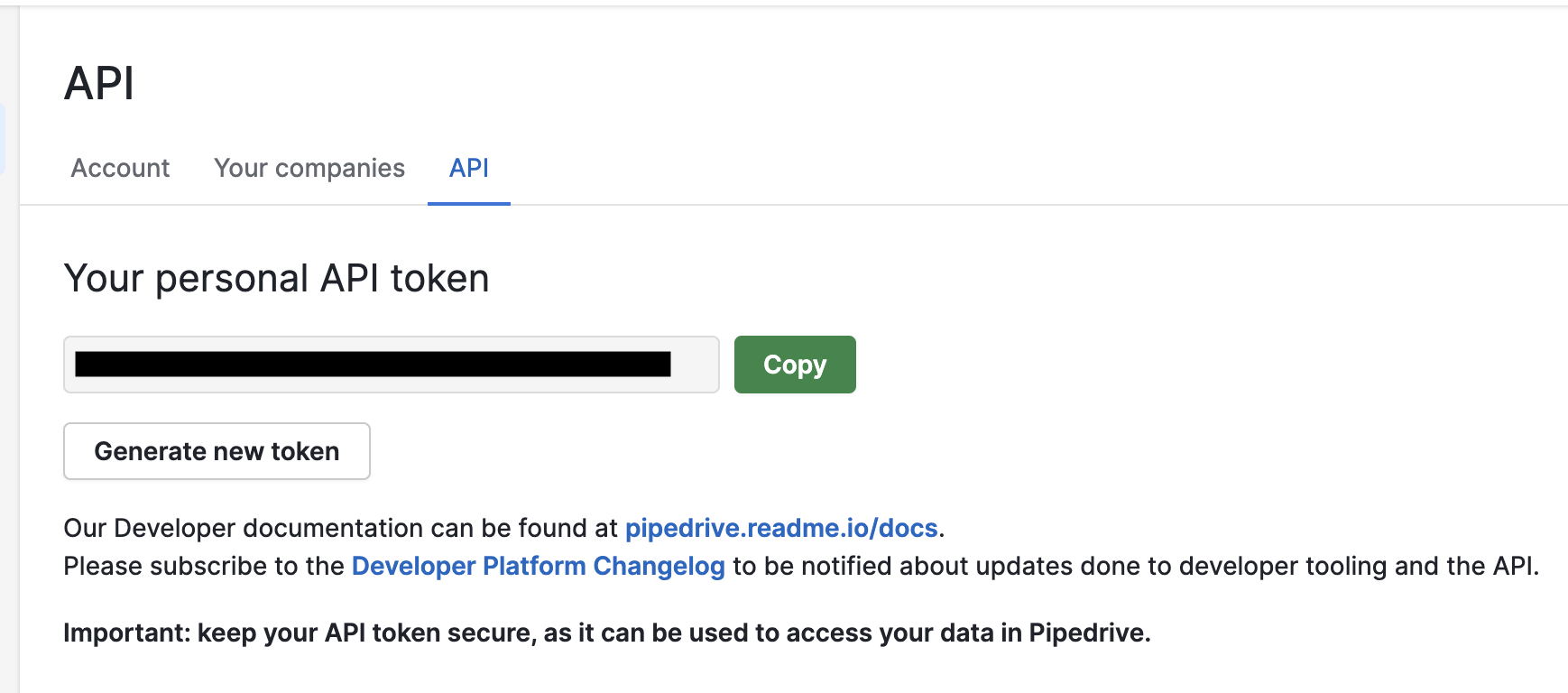
OAuth 2.0 is recommended over API tokens for production workflows. OAuth provides better security, scoped permissions, and easier credential rotation.
Available Operations
The Pipedrive connector provides 65 operations across multiple resource types. All operations use the Pipedrive API v2 base URL: https://api.pipedrive.com/api/v2
Activities
Manage activities such as calls, meetings, tasks, deadlines, and lunches.
- add_activity - POST
/activities- Adds a new activity - delete_activity - DELETE
/activities/:id- Deletes an activity - get_activity - GET
/activities/:id- Retrieves a specific activity - list_activities - GET
/activities- Lists all activities - update_activity - PATCH
/activities/:id- Updates an activity
Deals
Manage deals through your sales pipeline.
- add_deal - POST
/deals- Adds a new deal - convert_deal_to_lead - POST
/deals/:id/convert/lead- Converts a deal to a lead - delete_deal - DELETE
/deals/:id- Deletes a deal - get_deal - GET
/deals/:id- Retrieves a specific deal - get_deal_conversion_status - GET
/deals/:id/convert/status/:conversion_id- Gets deal conversion status - list_archived_deals - GET
/deals/archived- Lists archived deals - list_deals - GET
/deals- Lists all deals - search_deals - GET
/deals/search- Searches for deals - update_deal - PATCH
/deals/:id- Updates a deal
Deal Products
Manage products attached to deals.
- add_deal_product - POST
/deals/:id/products- Adds a product to a deal - delete_deal_product - DELETE
/deals/:id/products/:product_attachment_id- Removes a product from a deal - get_deal_products - GET
/deals/:id/products- Gets products attached to a deal - list_deals_products - GET
/deals/products- Lists all products attached to deals - update_deal_product - PATCH
/deals/:id/products/:product_attachment_id- Updates a product attached to a deal
Deal Followers
Manage followers for deals.
- add_deal_follower - POST
/deals/:id/followers- Adds a follower to a deal - delete_deal_follower - DELETE
/deals/:id/followers/:follower_id- Removes a follower from a deal - get_deal_followers - GET
/deals/:id/followers- Gets followers of a deal - get_deal_followers_changelog - GET
/deals/:id/followers/changelog- Gets deal followers changelog
Discounts
Manage discounts applied to deals.
- add_additional_discount - POST
/deals/:id/discounts- Adds a discount to a deal - delete_additional_discount - DELETE
/deals/:id/discounts/:discount_id- Deletes a discount from a deal - get_additional_discounts - GET
/deals/:id/discounts- Retrieves discounts for a deal - update_additional_discount - PATCH
/deals/:id/discounts/:discount_id- Updates a deal discount
Installments
Manage payment installments for deals.
- add_installment - POST
/deals/:id/installments- Adds an installment to a deal - delete_installment - DELETE
/deals/:id/installments/:installment_id- Deletes an installment from a deal - list_installments - GET
/deals/installments- Lists deal installments - update_installment - PATCH
/deals/:id/installments/:installment_id- Updates a deal installment
Organizations
Manage organizations (companies) in your CRM.
- add_organization - POST
/organizations- Adds a new organization - delete_organization - DELETE
/organizations/:id- Deletes an organization - get_organization - GET
/organizations/:id- Retrieves a specific organization - list_organizations - GET
/organizations- Lists all organizations - search_organization - GET
/organizations/search- Searches for organizations - update_organization - PATCH
/organizations/:id- Updates an organization
Organization Followers
Manage followers for organizations.
- add_organization_follower - POST
/organizations/:id/followers- Adds a follower to an organization - delete_organization_follower - DELETE
/organizations/:id/followers/:follower_id- Removes a follower from an organization - get_organization_followers - GET
/organizations/:id/followers- Gets followers of an organization - get_organization_followers_changelog - GET
/organizations/:id/followers/changelog- Gets organization followers changelog
Persons
Manage persons (contacts) in your CRM.
- add_person - POST
/persons- Adds a new person - delete_person - DELETE
/persons/:id- Deletes a person - get_person - GET
/persons/:id- Retrieves a specific person - list_persons - GET
/persons- Lists all persons - search_persons - GET
/persons/search- Searches for persons - update_person - PATCH
/persons/:id- Updates a person
Person Followers
Manage followers for persons.
- add_person_follower - POST
/persons/:id/followers- Adds a follower to a person - delete_person_follower - DELETE
/persons/:id/followers/:follower_id- Removes a follower from a person - get_person_followers - GET
/persons/:id/followers- Gets followers of a person - get_person_followers_changelog - GET
/persons/:id/followers/changelog- Gets person followers changelog
Pipelines
Manage sales pipelines.
- add_pipeline - POST
/pipelines- Adds a new pipeline - delete_pipeline - DELETE
/pipelines/:id- Deletes a pipeline - get_pipeline - GET
/pipelines/:id- Gets a specific pipeline - list_pipelines - GET
/pipelines- Lists all pipelines - update_pipeline - PATCH
/pipelines/:id- Updates a pipeline
Stages
Manage pipeline stages.
- add_stage - POST
/stages- Adds a new pipeline stage - delete_stage - DELETE
/stages/:id- Deletes a pipeline stage - get_stage - GET
/stages/:id- Gets a specific pipeline stage - list_stages - GET
/stages- Lists all pipeline stages - update_stage - PATCH
/stages/:id- Updates a pipeline stage
Products
Manage products in your product catalog.
- add_product - POST
/products- Adds a new product - delete_product - DELETE
/products/:id- Deletes a product - get_product - GET
/products/:id- Gets a specific product - list_products - GET
/products- Lists all products - search_products - GET
/products/search- Searches for products - update_product - PATCH
/products/:id- Updates a product
Product Followers
Manage followers for products.
- add_product_follower - POST
/products/:id/followers- Adds a follower to a product - delete_product_follower - DELETE
/products/:id/followers/:follower_id- Removes a follower from a product - get_product_followers - GET
/products/:id/followers- Gets followers of a product - get_product_followers_changelog - GET
/products/:id/followers/changelog- Gets product followers changelog
Product Variations
Manage variations of products (different sizes, colors, configurations).
- add_product_variation - POST
/products/:id/variations- Adds a product variation - delete_product_variation - DELETE
/products/:id/variations/:product_variation_id- Deletes a product variation - get_product_variations - GET
/products/:id/variations- Gets variations of a product - update_product_variation - PATCH
/products/:id/variations/:product_variation_id- Updates a product variation
Leads
Manage lead conversion and status tracking.
- convert_lead_to_deal - POST
/leads/:id/convert/deal- Converts a lead to a deal - get_lead_conversion_status - GET
/leads/:id/convert/status/:conversion_id- Gets lead conversion status - search_leads - GET
/leads/search- Searches for leads
Search
Perform general searches across Pipedrive data.
- search_item - GET
/itemSearch- Performs general item search - search_item_by_field - GET
/itemSearch/field- Performs field-specific search
Users
Retrieve user-related information.
- get_user_followers - GET
/users/:id/followers- Gets followers of a user
Use Cases
The Pipedrive connector enables automation across various CRM workflows:
Deal Management Automation
Automatically create, update, and track deals as they progress through your sales pipeline. Trigger actions when deals reach specific stages or values.
Example workflow: When a deal moves to "Proposal Sent" stage, automatically create a follow-up activity for 3 days later and send a notification to the sales manager.
Lead Conversion Workflows
Convert qualified leads to deals automatically based on scoring criteria or manual triggers. Track conversion status and update related records.
Example workflow: When a lead score exceeds 80, automatically convert the lead to a deal, assign it to the appropriate sales representative, and create an initial discovery call activity.
Product Catalog Synchronization
Keep product catalogs synchronized between Pipedrive and other systems such as inventory management, e-commerce platforms, or billing systems.
Example workflow: When a product is added or updated in your inventory system, automatically sync the changes to Pipedrive, including pricing, descriptions, and availability.
Follower Management
Automatically add team members as followers to deals, organizations, or persons based on criteria such as deal value, territory, or product type.
Example workflow: When a new enterprise deal is created (value > $50,000), automatically add the VP of Sales and account manager as followers to ensure visibility.
Multi-Stage Pipeline Automation
Automate actions across multiple pipeline stages, such as creating activities, sending notifications, updating fields, or triggering external integrations.
Example workflow: As deals progress through pipeline stages, automatically update probability percentages, create stage-specific activities, and notify relevant team members at each transition.
Pipedrive Trigger
Overview
Pipedrive trigger allows to react on different action and changes, that was done for your CRM account.
Example of Usage
This quick‑start guide walks you through building a Tray.io workflow that listens for Activity Created events in Pipedrive and receives the full payload in real time.
Prerequisites
- A Tray.io account with workspace access.
- A Pipedrive account and API access (admin rights recommended).
1. Add the Pipedrive Trigger and Authenticate
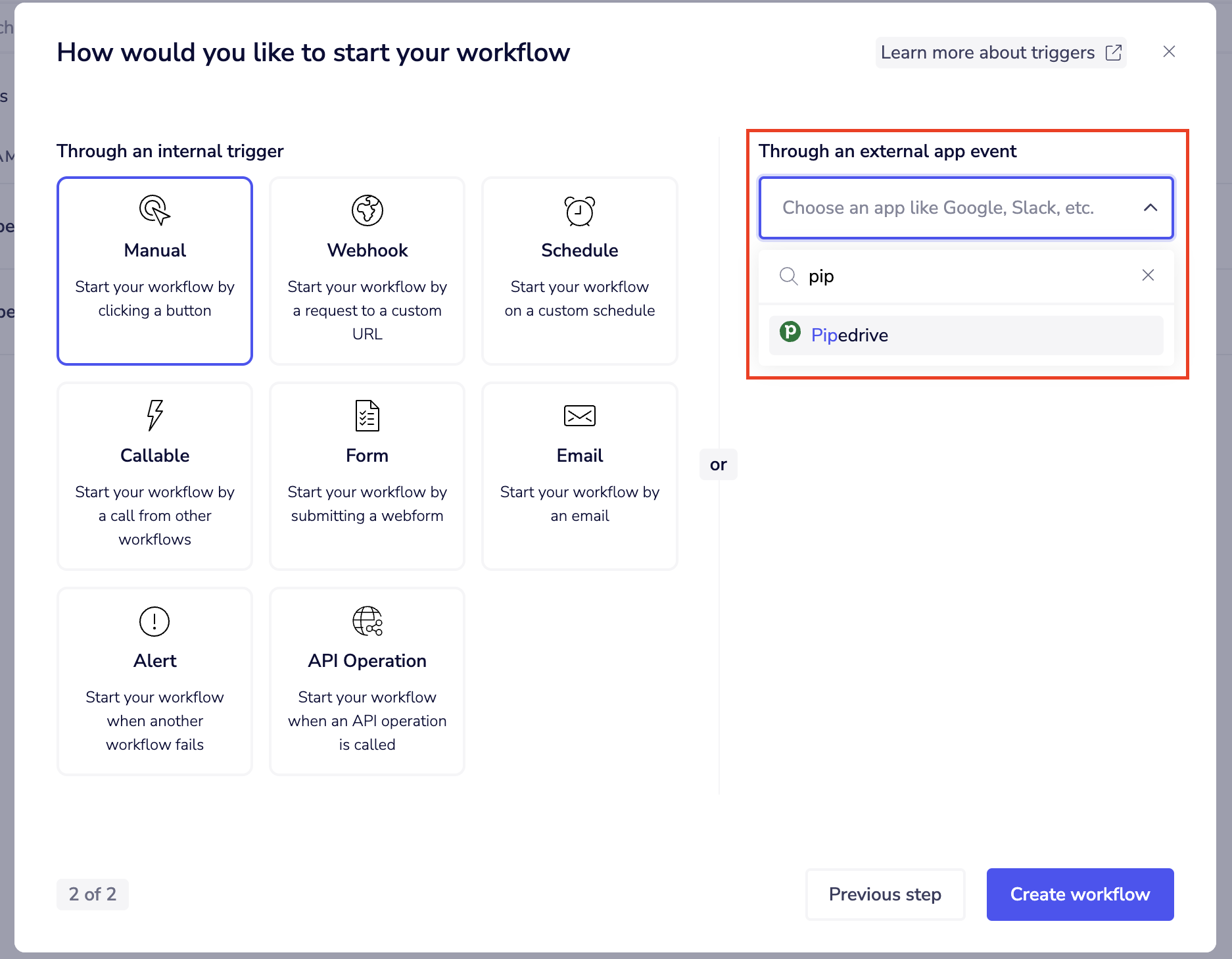
- Click New workflow and choose **From scratch. **
- On step of choosing trigger type choose Pipedrive trigger
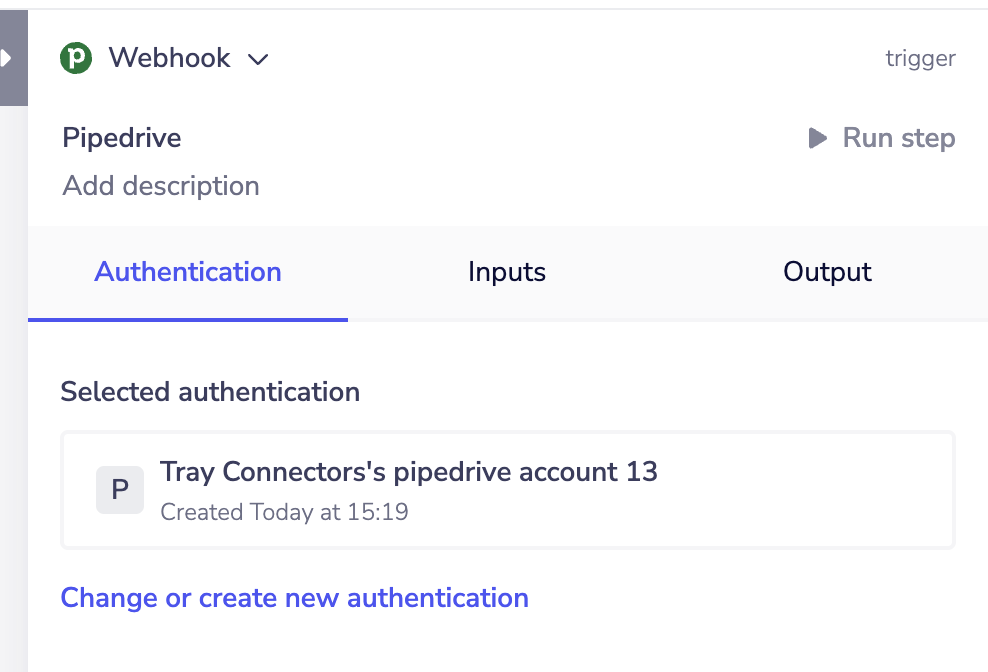
- Open the Authentication tab.
- Choose an existing Pipedrive auth or click Create new authentication and follow the OAuth flow.
2. Define the Trigger Inputs
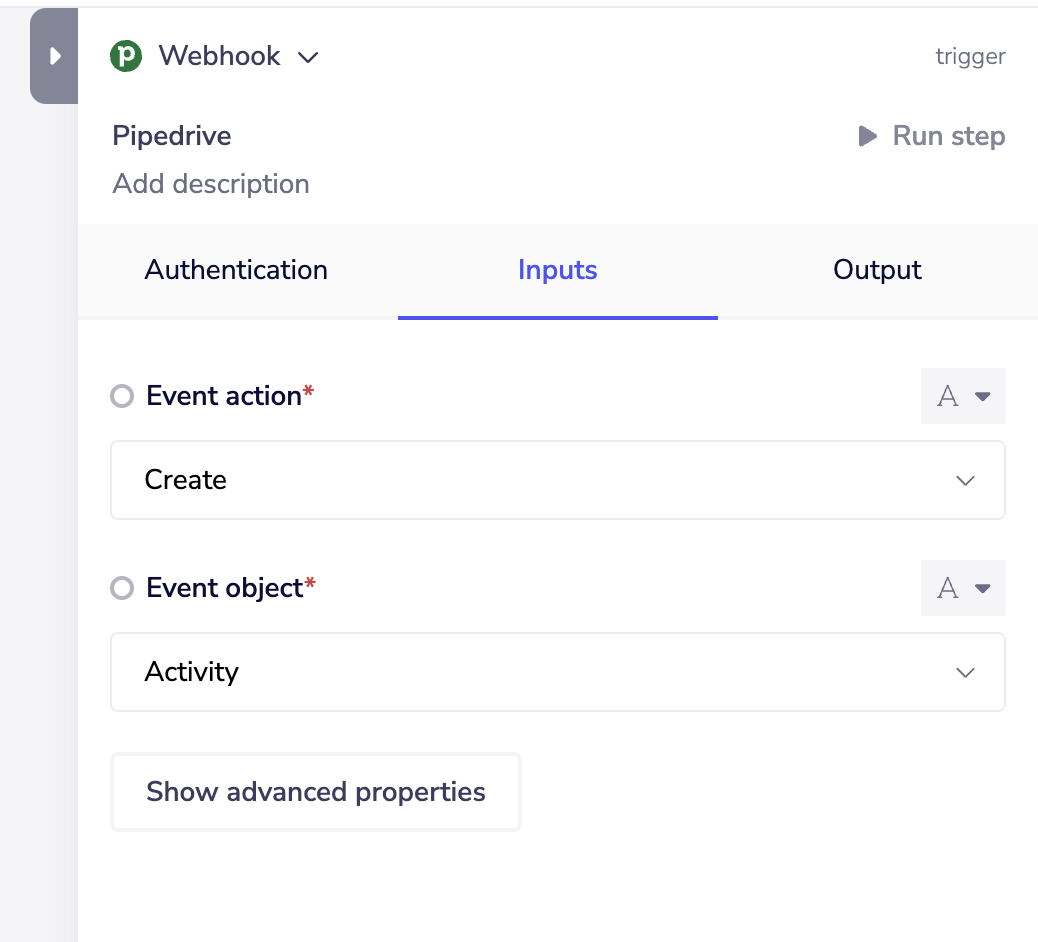
- Switch to the Inputs tab.
- Set Event action to Create.
- Set Event object to Activity.
3. Enable the Trigger
- Click the green Enable workflow button in the bottom‑middle.

- The banner will change from Saved, not enabled → Saved & enabled.
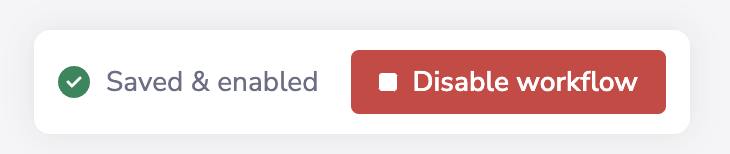 Enabling registers the webhook endpoint with Pipedrive; the workflow is now working.
4. Create a Test Activity in Pipedrive
- Log in to your Pipedrive account.
- Open Activities from the left sidebar and click + Activity.
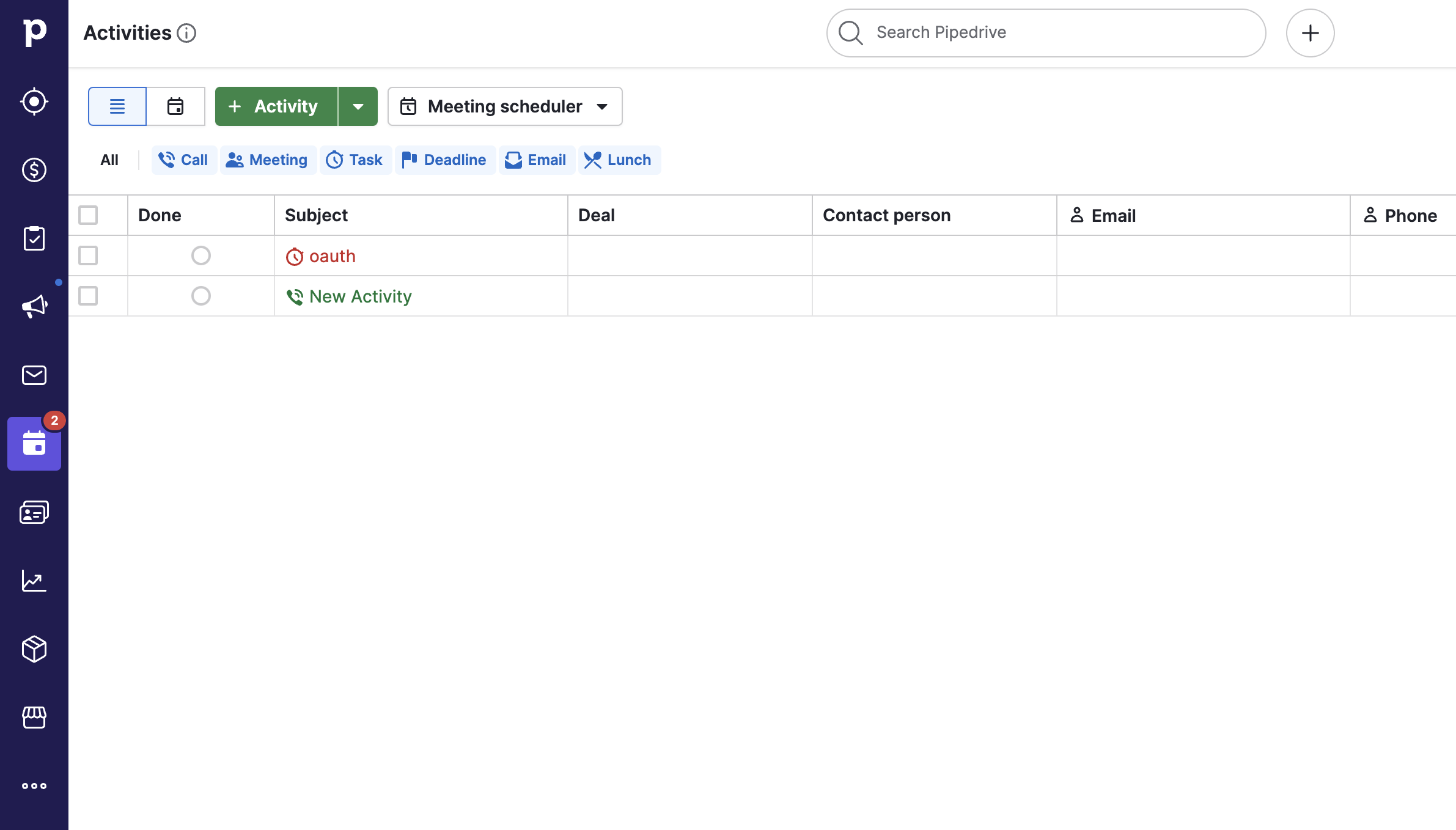
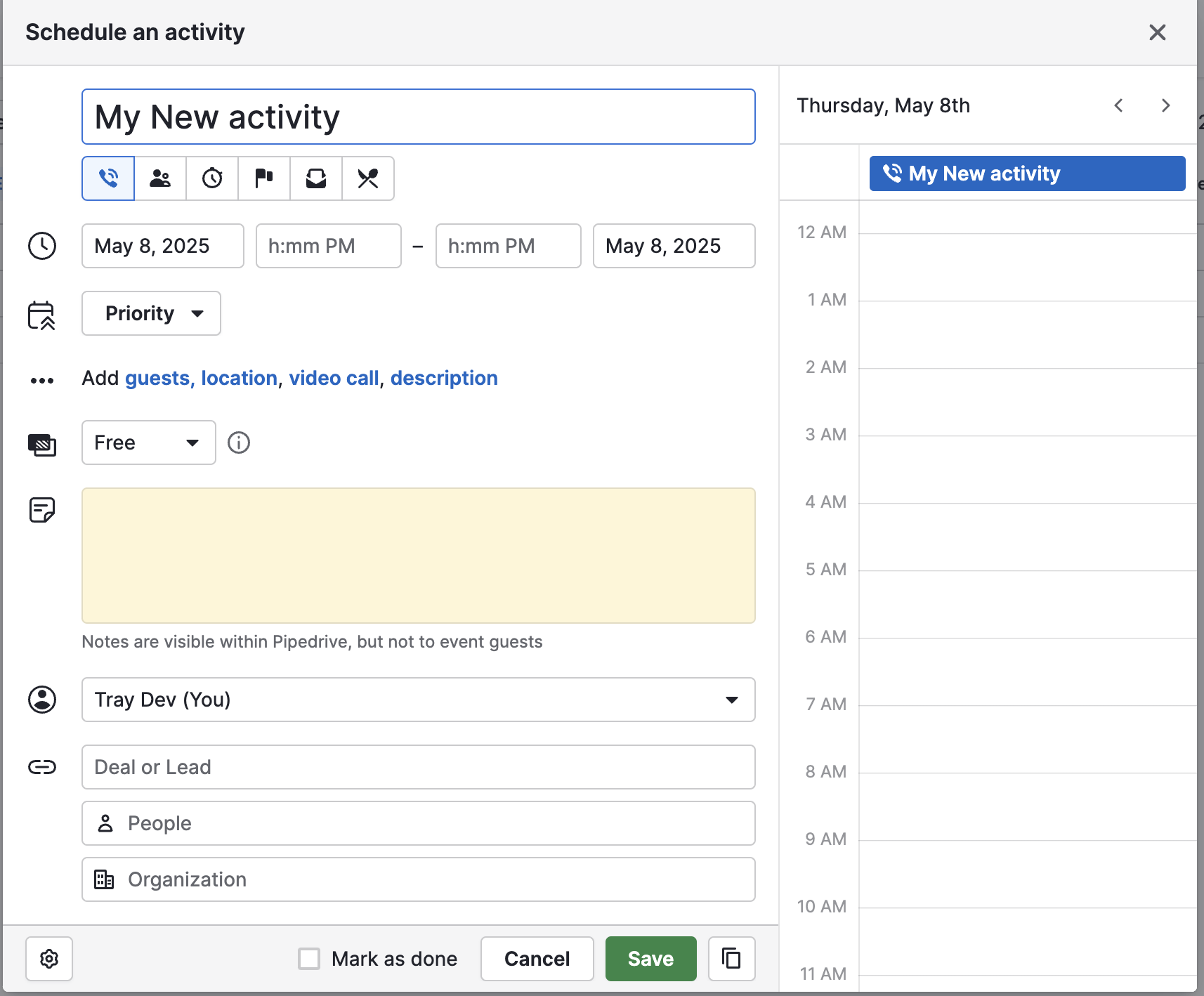
- Fill in the activity form (subject, dates, owner, etc.) and click Save.
5. Confirm the Trigger Fired
- Return to your workflow and open the Logs pane.
- You should see a new successful execution. Select it to inspect the payload – it will include the activity
id,subject, timestamps, and more.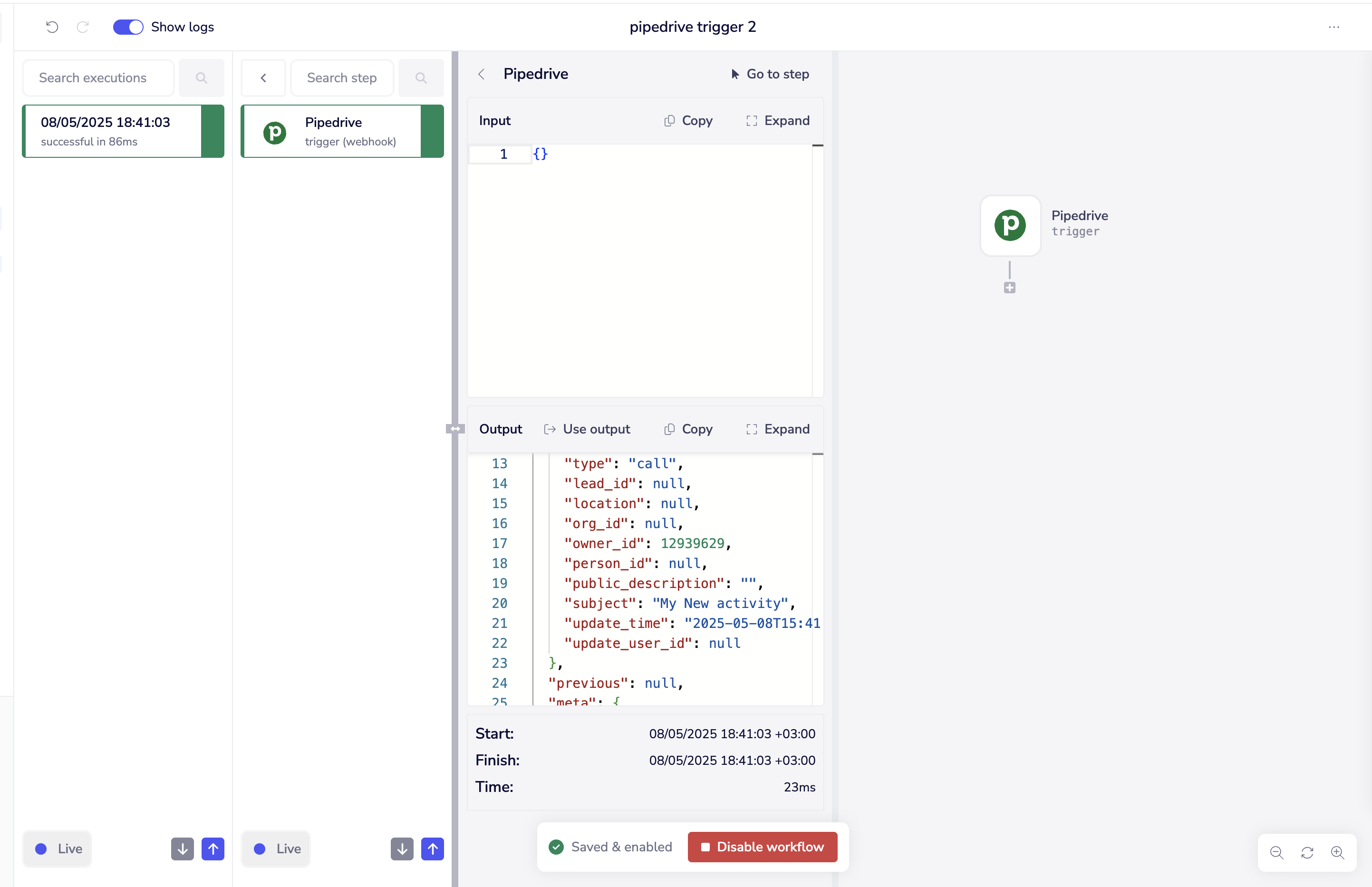
Next Steps
- Add downstream steps (e.g., Slack, Gmail, or logic helpers) to act on the activity details.
- Use the activity
idto pull additional context such as linked deals or persons. - Modify the Event action or object to listen for updates or other Pipedrive entities.
Available Operations
Please see the Full Operations Reference at the end of this page for complete details on all available operations and their parameters.