ShipStation
ShipStation is a web-based shipping solution that helps e-commerce retailers import, organize, process, and ship orders efficiently.
Overview
ShipStation is a powerful shipping software that streamlines order fulfillment for online sellers. It integrates with major e-commerce platforms and marketplaces, allowing you to manage orders from multiple sales channels in one place, compare shipping rates, print labels, and track shipments.
API Information
The ShipStation connector uses the ShipStation REST API with the following base URL: https://ssapi.shipstation.com. More information can be found on their main API documentation site. Details regarding their API rate limitations can be found here.
Authentication
When using the ShipStation connector, the first thing you will need to do is go to your Tray account page, and select the workflow you wish to work on. Once in the workflow dashboard itself, search and drag the ShipStation connector from the connectors panel (on the left hand side) onto your workflow.
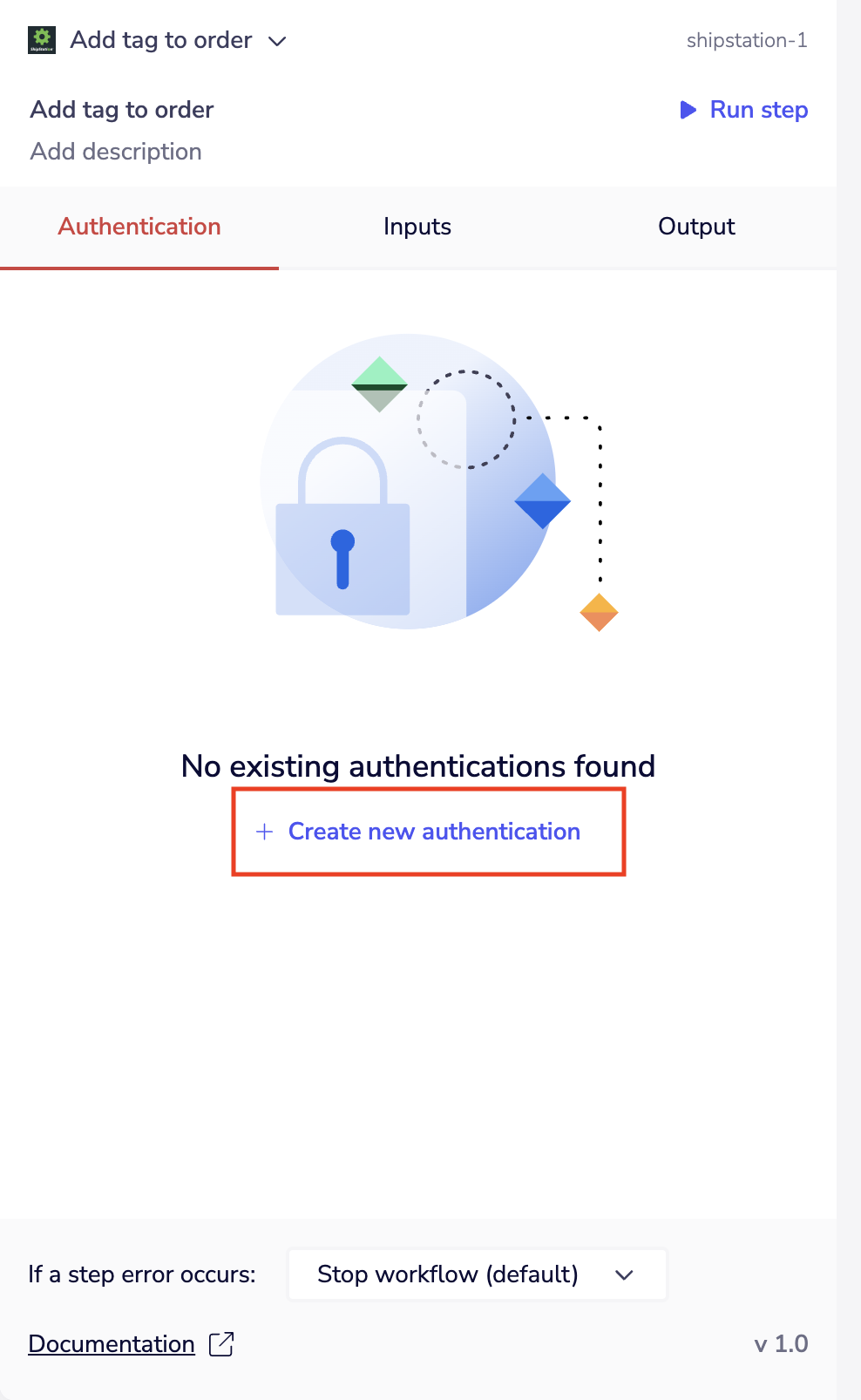
With the new ShipStation connector step highlighted, in the properties panel on the right, click on 'Create New Authentication' which is located under the 'Authentications' tab.
Authentication Method
The ShipStation connector uses Basic HTTP Authentication with API credentials.
Required Credentials:
- API Key (used as the username)
- API Secret (used as the password)
Obtaining Your API Credentials
To obtain your ShipStation API credentials:
-
Log in to your ShipStation account at https://shipstation.com
-
Click the Settings icon (gear icon) in the top right corner

-
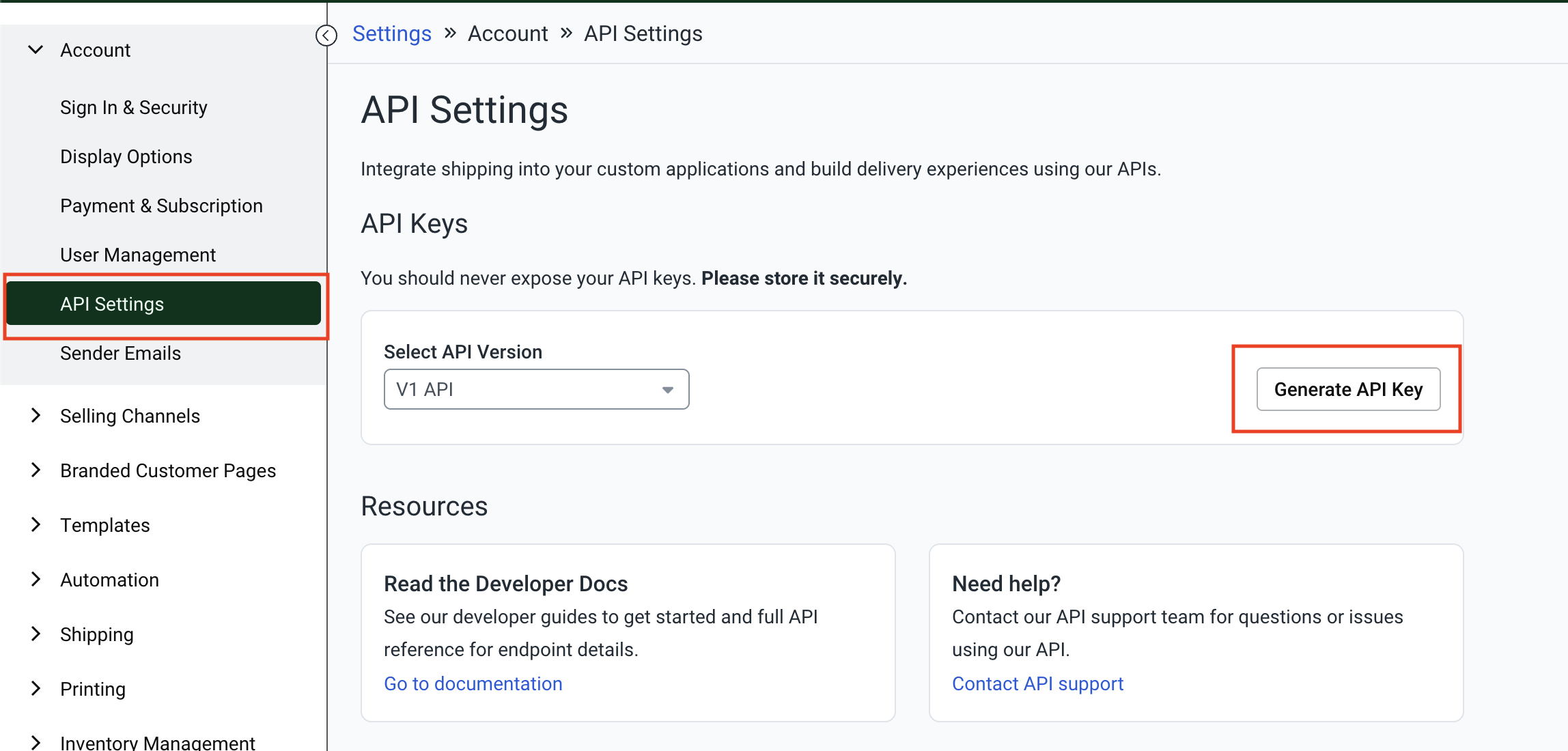
In the left sidebar under the Account section, click on API Settings
-
On the API Settings page, click the Generate API Key button
-
Select your preferred key expiration period and click Generate
-
Your API Key and Secret Key will be displayed. Copy both values immediately
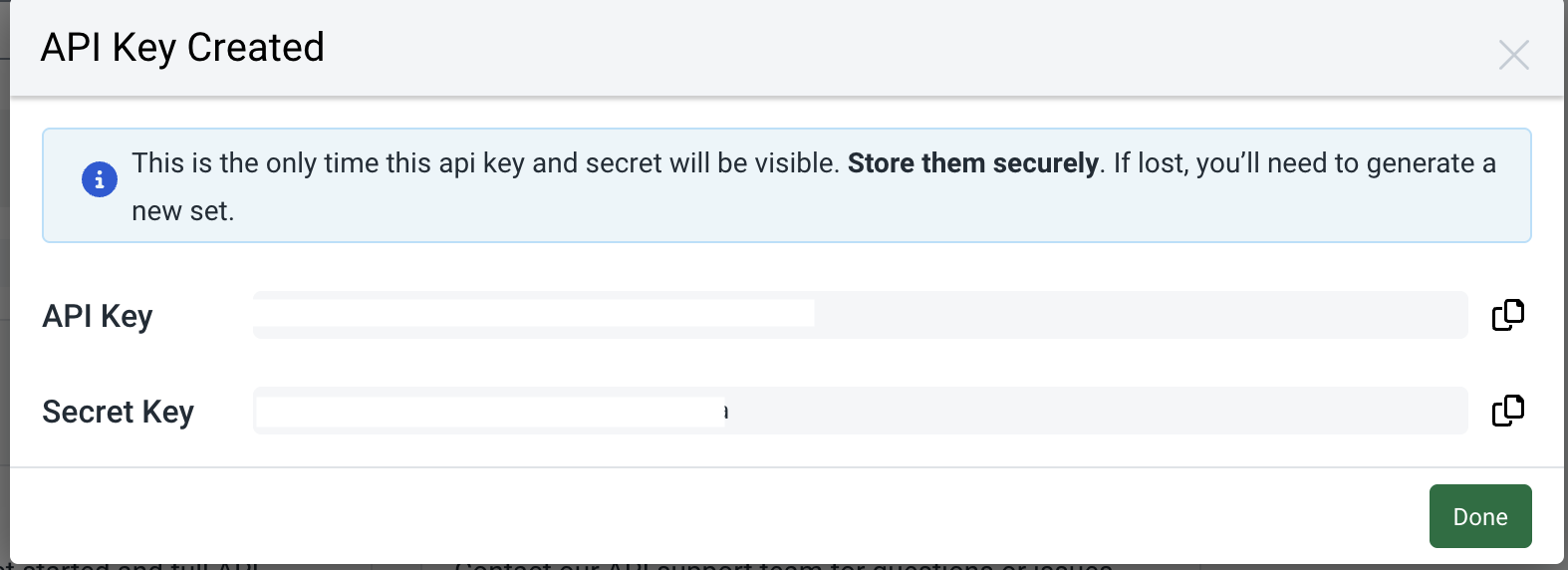
Important: - Copy your credentials immediately - This is the only time the API Key and Secret will be visible. Once you close this dialog, they cannot be retrieved again - Keep your API Secret secure and never share it publicly - If you lose your credentials or believe they have been compromised, you will need to generate new credentials from the API Settings page
Configuring Authentication in Tray
Once you have your API credentials:
- Return to the Tray authentication dialog
- Enter your API Key in the Username field
- Enter your Secret Key in the Password field
- Click Create Authentication
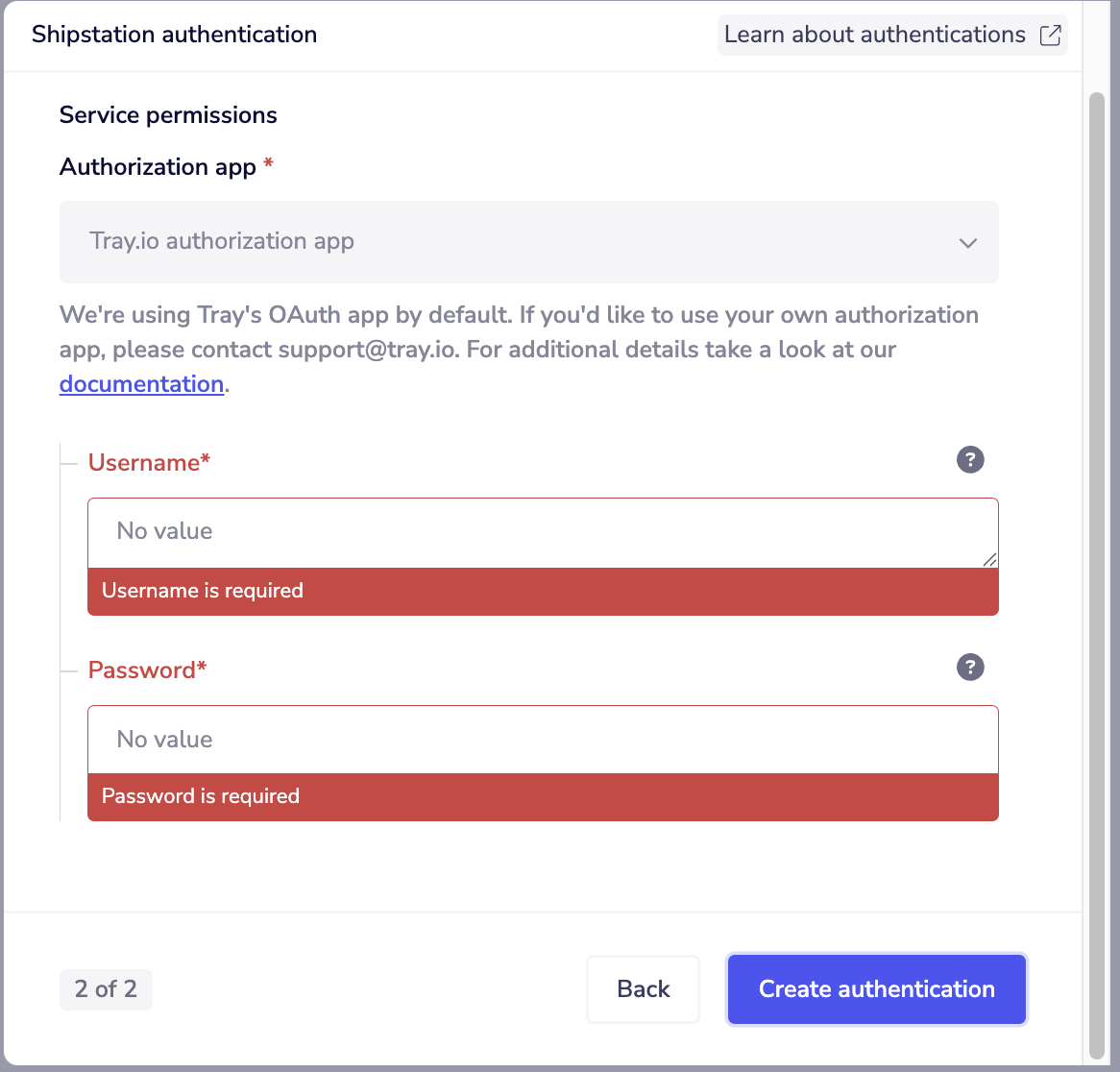
The authentication will be validated and saved. You can now use this authentication across multiple workflows.