Connector Tools
Expose individual connector operations as MCP tools for quick, granular access to your integrated systems.
Connector Tools expose individual operations from Tray's 700+ connectors as MCP tools. Unlike Workflow Tools that execute entire workflows, Connector Tools provide direct access to specific connector operations.
What are Connector Tools?
Connector Tools are individual connector operations made available through your MCP server. Each operation becomes a separate tool that AI agents can discover and execute.
Key benefits:
- Quick setup - No workflow building required
- Granular control - Select exactly which operations to expose
- Read-only modes - Expose query operations without modification capabilities
- Direct API access - Operations map directly to underlying API calls
When to Use Connector Tools
Use Connector Tools for:
- Simple, direct operations (SOQL queries, record lookups, searches)
- Read-only data access without modification risk
- Quick functionality exposure without workflow development
Use Workflow Tools for:
- Multi-step logic
- Data transformation and validation
- Human approval workflows
- Multiple system orchestration
Adding Connector Tools
- Navigate to Workspace Settings → Agent Gateway → MCP Server
- Click Connector tools tab
- Click + Add connector
- Select a connector (search or browse by category)
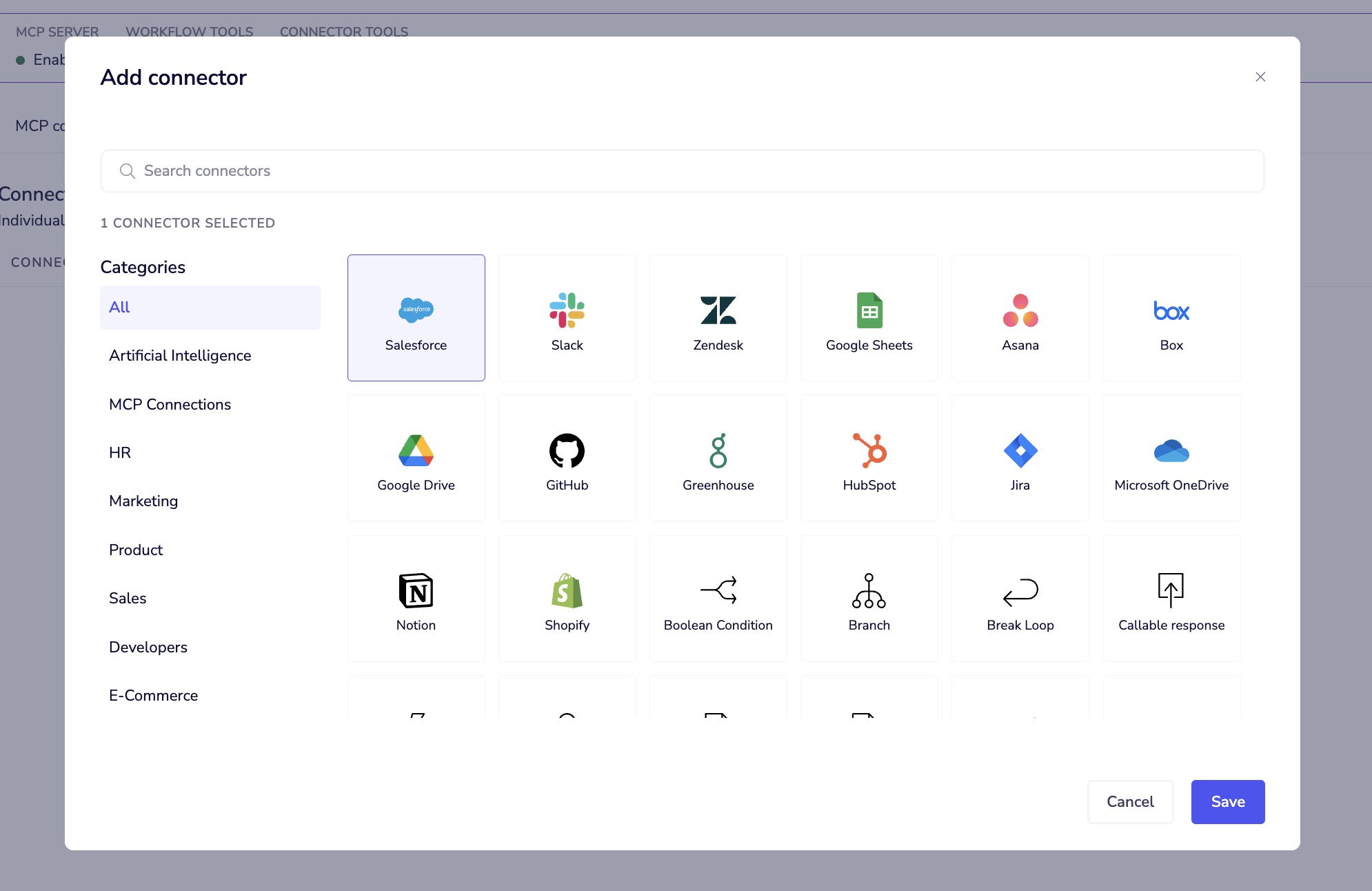
- In "Manage operations" modal, select operations to expose
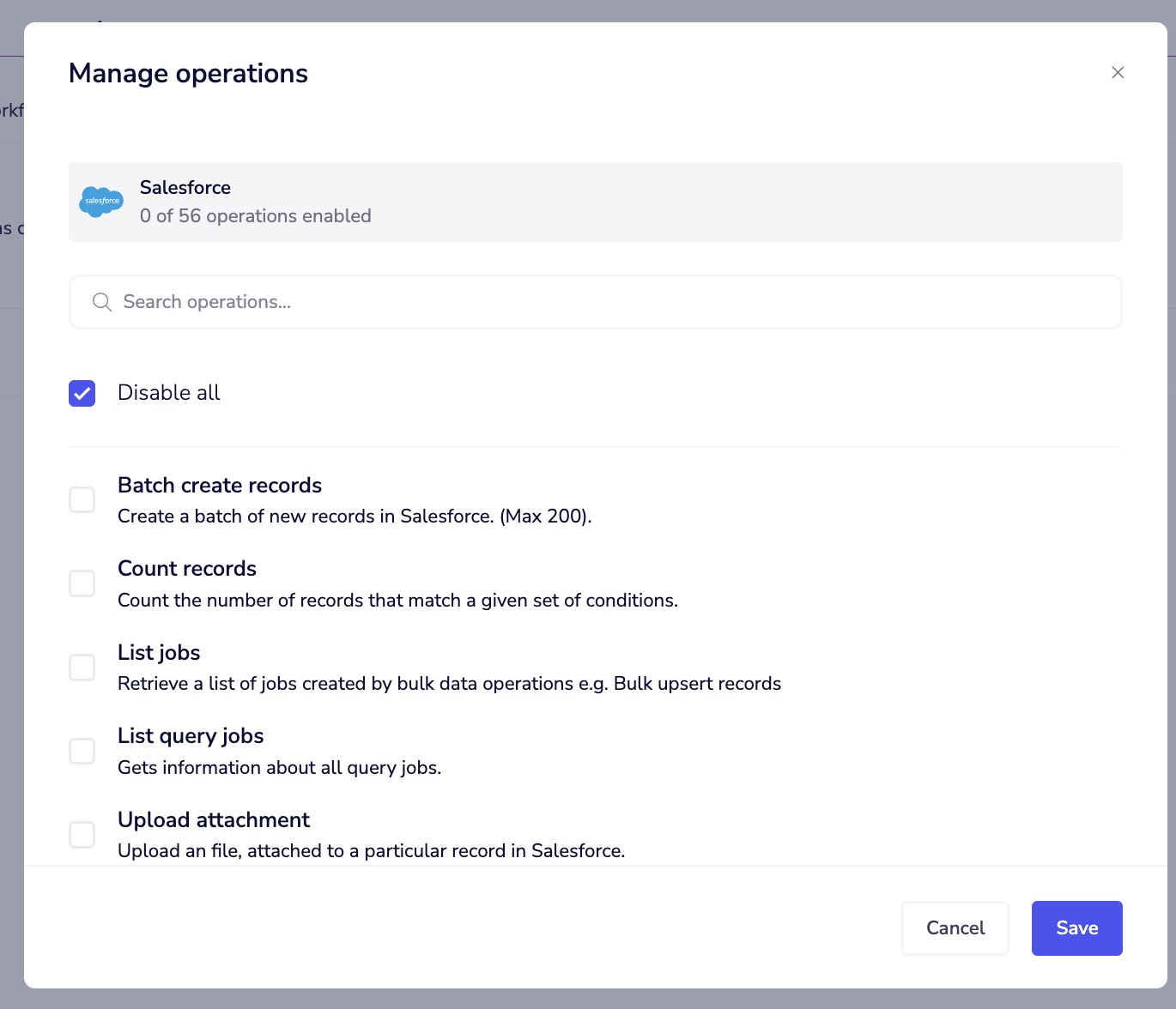
- Click Save
Managing connectors:
- View connector name, icon, and enabled operation count
- Use actions menu (•••) to manage operations or remove connector
Empty state:
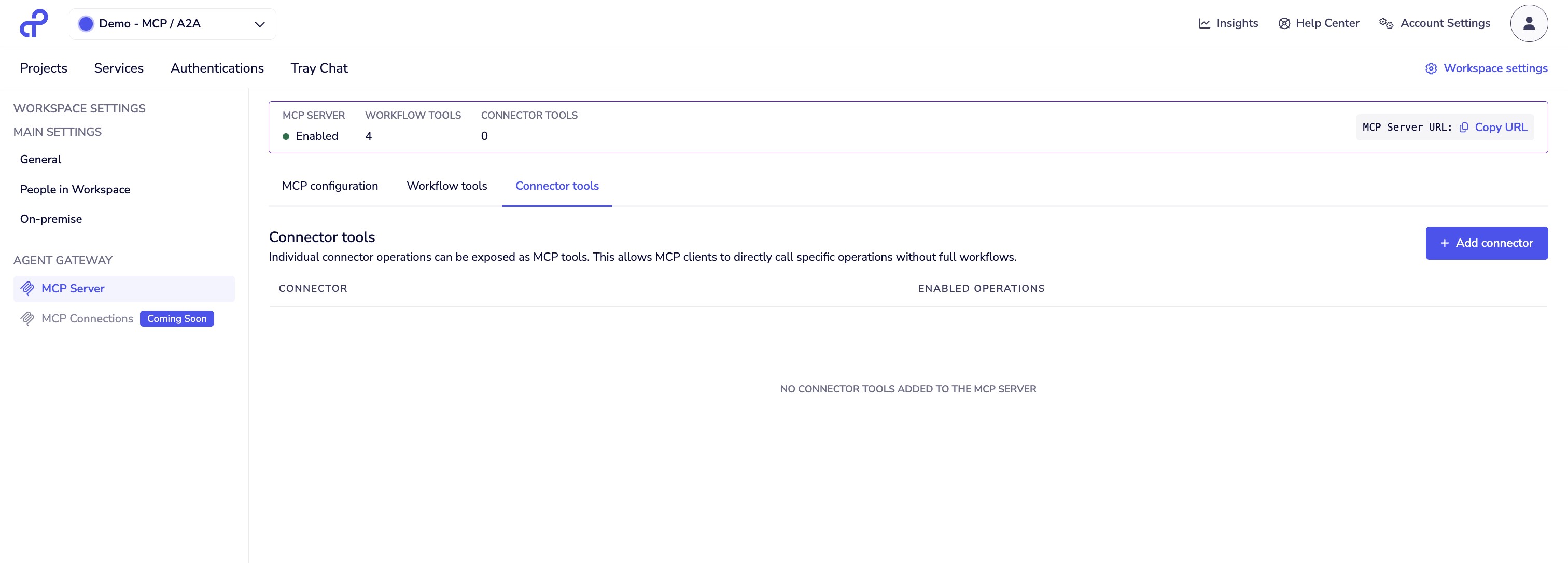
Common Use Cases
Read-Only Salesforce Access
Enable AI to query Salesforce data without modification risk.
Expose:
- Run SOQL Query
- Lookup Account
- Lookup Opportunity
- Lookup Contact
Don't expose:
- Create, Update, or Delete operations
AI agents can answer CRM questions without risk of accidental changes.
SOQL Query Tool
Allow users to run ad-hoc Salesforce queries via AI assistant.
Expose: Run SOQL Query operation only
Why this works:
- SOQL input passes directly to Salesforce
- Users ask in natural language
- AI translates to SOQL syntax
- Results returned directly
Example:
User: "Show me all opportunities closing this quarter over $100k"
AI executes SOQL query:
SELECT Name, Amount, CloseDate FROM Opportunity
WHERE Amount > 100000
AND CloseDate >= THIS_QUARTER
Database Query Operations
Enable analysts to query databases through AI.
Expose: SELECT queries, read-only procedures, view operations
Block: INSERT/UPDATE/DELETE, schema modifications, admin operations
API-Specific Operations
Quick access to endpoints without workflow logic.
Examples:
- GitHub: List repositories, get file contents, search code
- Slack: List channels, get user info, search messages
- Google Sheets: Read range, get sheet metadata
- Jira: Search issues, get issue details, list projects
Decision Guide
| Scenario | Connector Tool | Workflow Tool |
|---|---|---|
| Simple SOQL query | ✅ | ❌ |
| Look up record by ID | ✅ | ❌ |
| Create with validation | ❌ | ✅ |
| Multi-step process | ❌ | ✅ |
| Requires approval | ❌ | ✅ |
| Data transformation | ❌ | ✅ |
| Read-only access | ✅ | Either |
| Complex business logic | ❌ | ✅ |
Best Practices
Security-first selection:
- Start with read-only operations
- Consider impact of each operation
- Review regularly
Risk assessment:
- What's the worst case if misused?
- Does this require human judgment?
- Are there rate limits or quotas?
- What data could be accessed/modified?
Clear naming:
- ✅ Good: "Run SOQL Query", "Lookup Account", "Create Lead"
- ❌ Avoid: "Operation_123", "API Call", "Process"
Complementary tool sets:
Example for customer support:
Connector Tools (fast read access):
- Lookup Salesforce Account
- Lookup Salesforce Contact
- Run SOQL Query
Workflow Tools (controlled modifications):
- Create Support Ticket (validation + routing)
- Escalate Issue (approval + notification)
- Update Customer Info (audit logging)
Testing:
- Verify execution
- Check required vs optional parameters
- Test invalid inputs
- Confirm error handling
- Ensure AI can interpret responses
Managing Tools
Updating operations:
- Find connector in Connector tools tab
- Click options menu (•••)
- Select "Manage operations"
- Add or remove operations
- Click Save
Changes take effect immediately.
Removing connectors:
- Click options menu (•••)
- Select remove connector
- Confirm removal
Troubleshooting
Operation not appearing:
- Verify connector added and operation enabled
- Check MCP server is enabled
- Restart AI client
Operation fails:
- Check connector authentication
- Verify required parameters provided
- Test manually in workflow
- Review connector documentation
Too many operations exposed:
- Reduce to essential operations
- Move complex operations to Workflow Tools
- Keep total tool count under 15-20
Next Steps
- Workflow Tools - Learn about Workflow Tools
- MCP Server Configuration - Configure server settings
- Connecting MCP Clients - Set up AI clients