SQL Transformer
Run SQL queries on files within your Tray workflows.
If you're interested in using this feature, please reach out to your Customer Success Manager or Account Executive.
Overview
The SQL Transformer is a Tray connector that enables you to run SQL queries directly on files within your workflows. Whether your files are stored in the Tray File System or sourced from external systems, the SQL Transformer allows you to query, join, and transform data using standard SQL syntax.
Supported File Formats
The SQL Transformer supports the following file formats as input sources:
- CSV - Comma-separated values
- JSON - JavaScript Object Notation
- Parquet - Columnar storage format
- Excel - Microsoft Excel files
- Plain text - Raw text data
How It Works
The SQL Transformer operates as a connector within your Tray workflow:
- Add the connector - Insert the SQL Transformer connector into your workflow
- Select source files - Choose one or more files to query from the Tray File System or other sources
- Write your SQL query - Use standard SQL syntax to query and transform your data
- Choose output format - Output results as JSON or save as a file in your preferred format
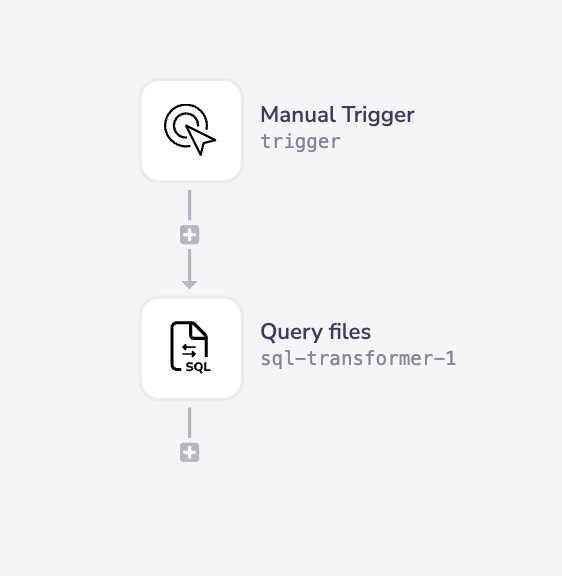
Adding Sources
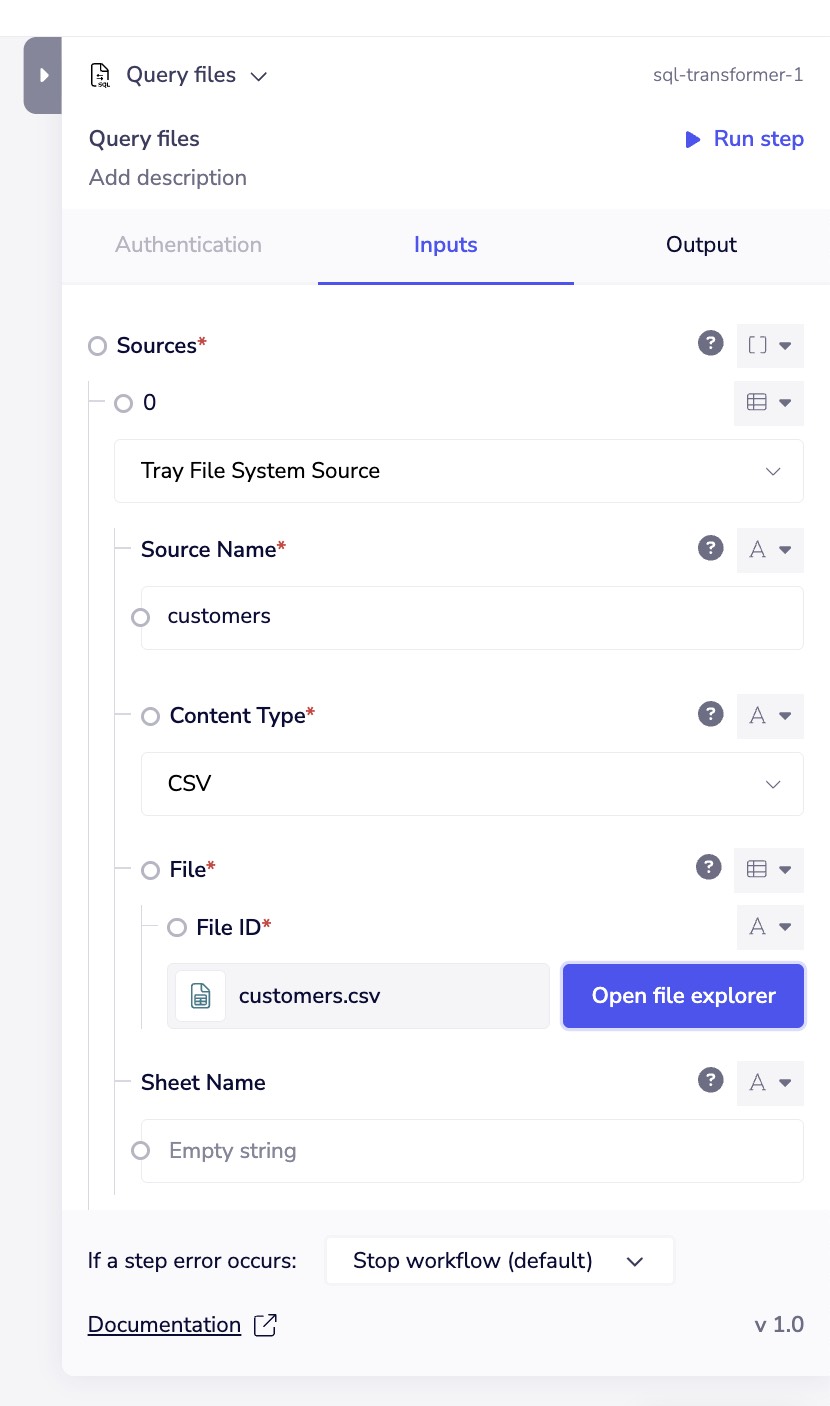
To query files with the SQL Transformer, you first need to add them as sources.
Each source file requires a unique name that you'll reference in your SQL query.
Source Configuration
For each source, you'll specify:
- Source Name - A unique identifier to reference in your SQL query (e.g., "customers", "orders")
- Content Type - The format of your file (CSV, JSON, Parquet, Excel)
- File - The file to query, selected from the Tray File System
- Sheet Name (Excel only) - The specific sheet to query within an Excel workbook
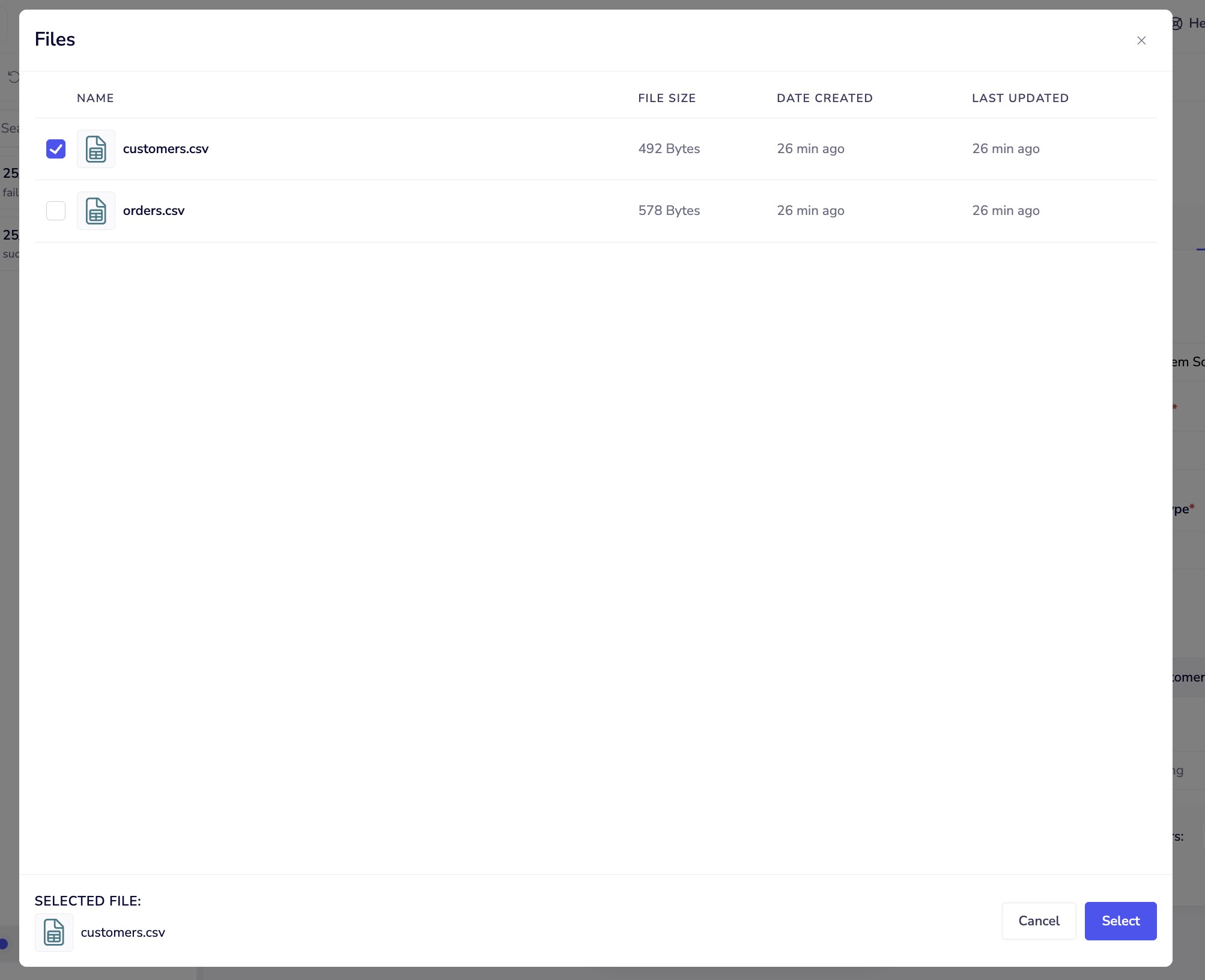
File Explorer
Use the built-in file explorer to browse and select files from your Tray File System:
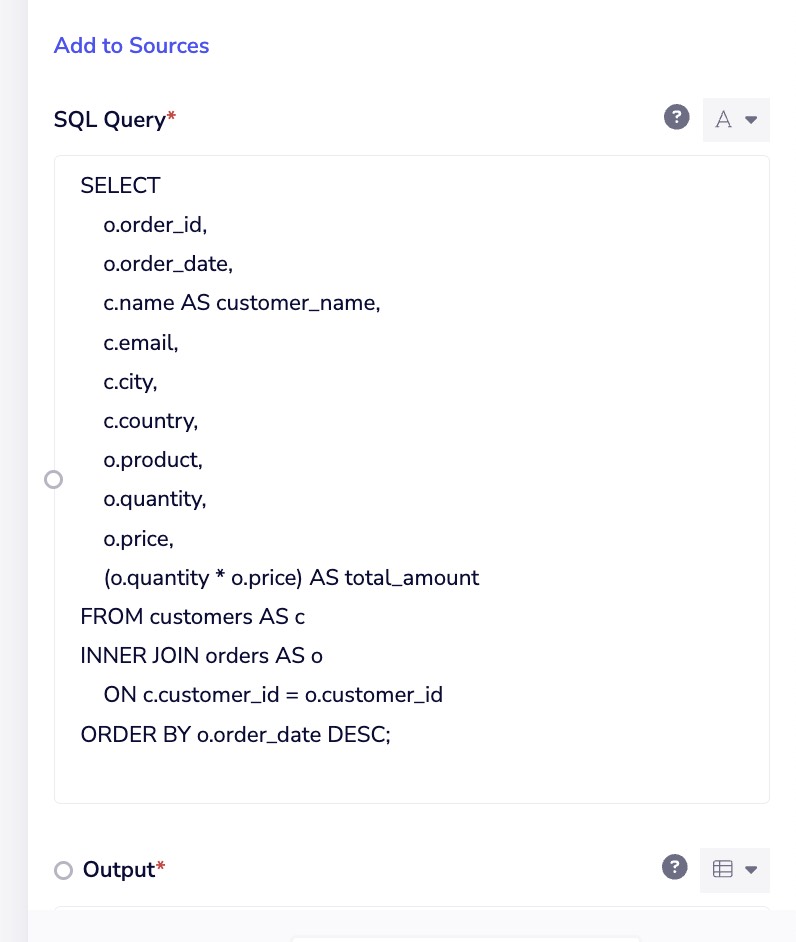
Writing SQL Queries
The SQL Transformer uses standard SQL syntax to query your data, supporting a wide range of SQL operations for data manipulation and analysis.
Basic Query Structure
Reference your sources using the names you defined when adding them:
SELECT
    o.order_id,
    o.order_date,
    c.name AS customer_name,
    c.email,
    c.city,
    c.country,
    o.product,
    o.quantity,
    o.price,
    (o.quantity * o.price) AS total_amount
FROM customers AS c
INNER JOIN orders AS o
    ON c.customer_id = o.customer_id
ORDER BY o.order_date DESC;
Querying Multiple Files
You can join data across multiple source files in a single query:
SELECT
    customers.name,
    customers.email,
    COUNT(orders.order_id) as total_orders,
    SUM(orders.amount) as total_revenue
FROM customers
LEFT JOIN orders
    ON customers.customer_id = orders.customer_id
GROUP BY customers.name, customers.email
ORDER BY total_revenue DESC;
Common SQL Operations
The SQL Transformer supports standard SQL operations including:
- SELECT - Retrieve specific columns
- WHERE - Filter rows based on conditions
- JOIN - Combine data from multiple sources (INNER, LEFT, RIGHT, FULL OUTER)
- GROUP BY - Aggregate data by specified columns
- ORDER BY - Sort results
- Aggregate functions - COUNT, SUM, AVG, MIN, MAX
- String functions - CONCAT, UPPER, LOWER, SUBSTRING
- Date functions - Date manipulation and formatting
The SQL Transformer supports ANSI SQL standard syntax for maximum compatibility and flexibility.
Output Options
The SQL Transformer provides flexible output options to suit your workflow needs:
JSON Result Output
Output query results as JSON data that can be used directly in subsequent workflow steps:
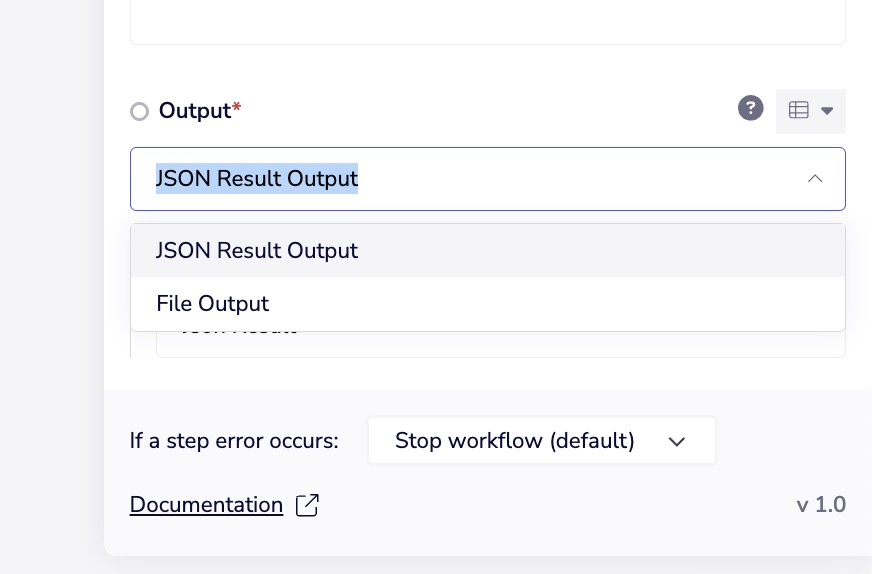
Use JSON output when:
- Passing data to API endpoints
- Processing results in subsequent workflow steps
- Working with individual records programmatically
File Output
Save query results as a file in the Tray File System:
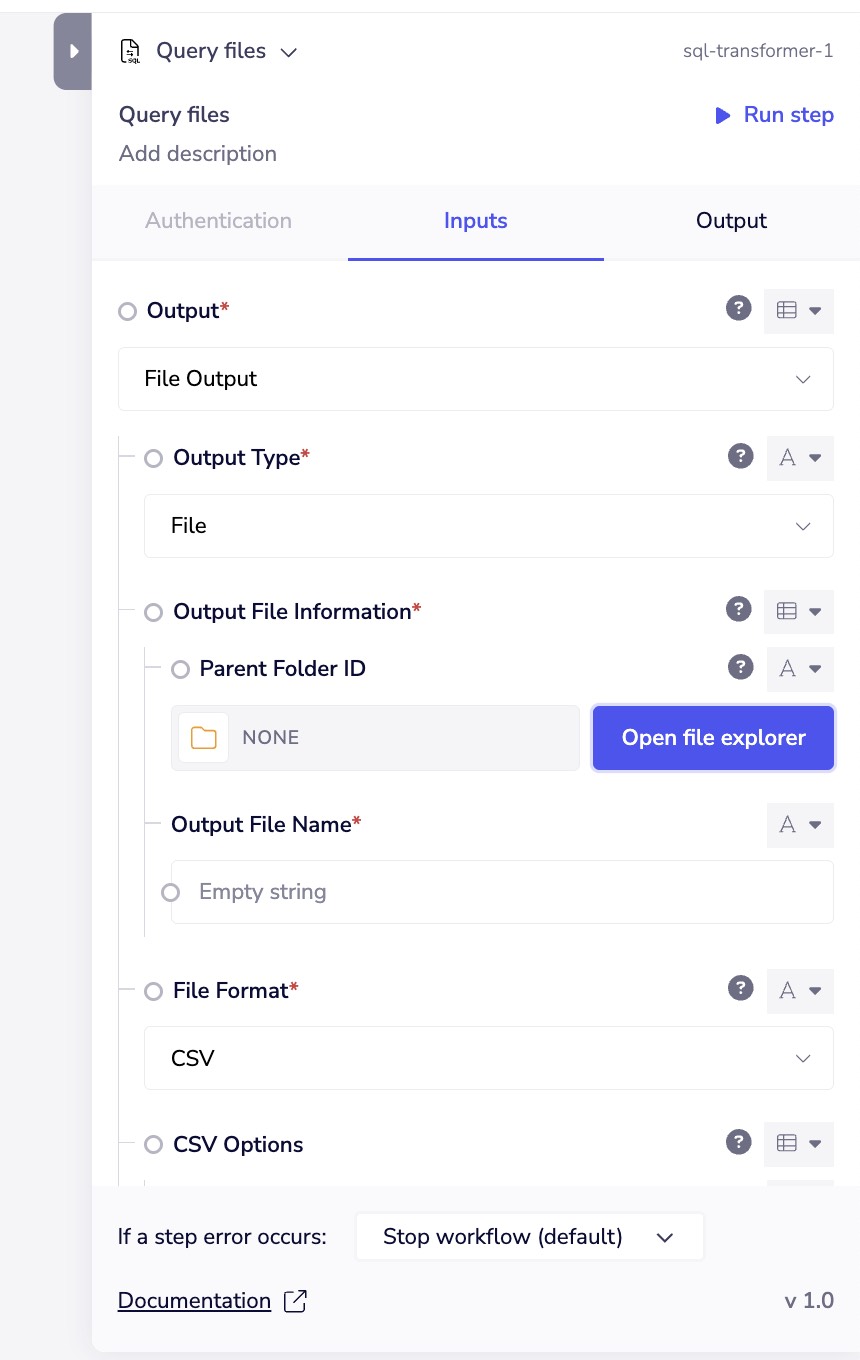
File output supports:
- CSV - Comma-separated values
- JSON - JavaScript Object Notation
- Parquet - Columnar storage format
- Excel - Microsoft Excel files
File output configuration:
- Parent Folder ID - The Tray File System folder to save the file
- Output File Name - The name for your output file
- File Format - Choose your preferred format
- CSV Options - Configure delimiters and formatting (for CSV output)
Use file output when:
- Creating reports for download or storage
- Preparing data for external systems
- Archiving query results
- Building data pipelines with file-based handoffs
Use Cases
Data Aggregation and Reporting
Combine order data with customer information to generate sales reports:
SELECT
    country,
    COUNT(DISTINCT customer_id) as customers,
    COUNT(order_id) as total_orders,
    SUM(total_amount) as total_revenue,
    AVG(total_amount) as avg_order_value
FROM customers
JOIN orders ON customers.customer_id = orders.customer_id
GROUP BY country
ORDER BY total_revenue DESC;
Data Cleansing and Filtering
Clean and filter data before passing to downstream systems:
SELECT
    customer_id,
    UPPER(name) as name,
    LOWER(email) as email,
    city,
    country
FROM customers
WHERE
    email IS NOT NULL
    AND country IN ('US', 'CA', 'GB')
    AND status = 'active';
Joining Multiple Data Sources
Merge data from different systems before integration:
SELECT
    crm.customer_id,
    crm.name,
    crm.email,
    billing.subscription_tier,
    billing.mrr,
    support.ticket_count,
    support.last_contact_date
FROM crm_customers AS crm
LEFT JOIN billing_data AS billing
    ON crm.customer_id = billing.customer_id
LEFT JOIN support_tickets AS support
    ON crm.customer_id = support.customer_id
WHERE billing.status = 'active';
Data Transformation for ETL
Transform data structure and format for loading into target systems:
SELECT
    order_id,
    customer_id,
    DATE_FORMAT(order_date, '%Y-%m-%d') as order_date_formatted,
    product,
    quantity,
    price,
    CASE
        WHEN total_amount > 1000 THEN 'High Value'
        WHEN total_amount > 500 THEN 'Medium Value'
        ELSE 'Standard'
    END as order_category
FROM orders
WHERE order_date >= '2025-01-01';
Best Practices
Query Performance
For optimal performance, filter data early in your query using WHERE clauses before performing joins or aggregations.
- Use WHERE clauses - Filter unnecessary data before joins
- Select only needed columns - Avoid
SELECT *when possible - Test with sample data - Validate queries on smaller datasets first
- Consider file sizes - Large files may require additional processing time
Source Naming
- Use descriptive, meaningful names for your sources (e.g., "customers", "orders", "products")
- Keep names short and simple for easier query writing
- Use consistent naming conventions across your workflow
Error Handling
Configure error handling at the connector level:
- Stop workflow (default) - Halt execution if query fails
- Continue workflow - Proceed even if errors occur
- Custom error handling - Implement specific logic for query failures
Always validate your SQL syntax before running workflows in production. Invalid queries will cause workflow execution to fail.
Common Patterns
Deduplication
Remove duplicate records while keeping the most recent:
SELECT DISTINCT ON (customer_id)
    customer_id,
    name,
    email,
    updated_at
FROM customers
ORDER BY customer_id, updated_at DESC;
Date Range Filtering
Filter records within a specific date range:
SELECT *
FROM orders
WHERE order_date BETWEEN '2024-01-01' AND '2024-12-31'
ORDER BY order_date;
Conditional Aggregation
Create summary statistics with conditional logic:
SELECT
    product_category,
    COUNT(*) as total_orders,
    SUM(CASE WHEN amount > 100 THEN 1 ELSE 0 END) as high_value_orders,
    SUM(CASE WHEN status = 'returned' THEN 1 ELSE 0 END) as returns
FROM orders
GROUP BY product_category;
Troubleshooting
SQL Reference
The SQL Transformer supports standard SQL syntax with comprehensive features:
- ANSI SQL compliant - Standard SQL operations work as expected
- Rich function library - Extensive built-in functions for data manipulation
- Performance optimized - Efficient query execution on large datasets
- Full JOIN support - All standard join types (INNER, LEFT, RIGHT, FULL OUTER)
- Subquery support - Nested queries and derived tables
Next Steps
- Learn about Data Tables for persistent data storage
- Explore ETL Use Cases for data pipeline examples
- Review Tray File System documentation
- Check out Data Transformation Guide for additional techniques