Profile & Login
Manage your 2FA settings, multiple account logins, and SSO configuration.
Two-factor authentication
2FA is always required for all users when accessing Tray. By default, email-based 2FA is enforced on every login — a one-time code is sent which must be entered to complete authentication.
Users can configure TOTP-based 2FA as an alternative to email, using apps like Google Authenticator or Authy. To enable, go to Profile settings > 2FA and follow the prompts. You will need your password and your authenticator app to scan the QR code.
For organisations with specific 2FA requirements, SSO should be used so that 2FA can be managed at your Identity Provider. When SSO is enforced, email 2FA will not trigger. If SSO is enabled but not enforced, email 2FA will still apply.
Managing multiple logins
You can be signed into multiple Tray accounts at once, allowing you to switch between them quickly.
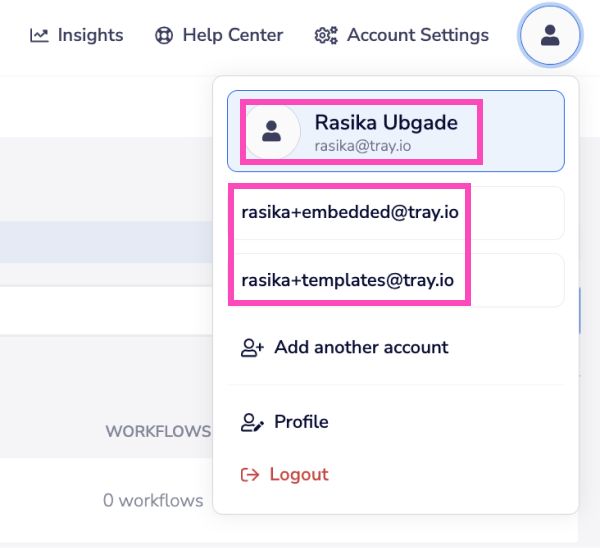
Adding accounts
- Click on your profile and select Add another account
- Log in with the additional account credentials
Notes
- Logging out of one account logs you out of all accounts
- You cannot use multiple accounts across different browser tabs simultaneously
Single Sign-On
SSO is available on Enterprise plans or as an add-on. It can be configured with any SAML 2.0 compatible Identity Provider (e.g. Okta, OneLogin, Duo).
Tray also has connectors for various SSO providers (e.g. Okta, OneLogin) or you can use the HTTP Client to improve your provisioning automations.
Setup
To configure SSO for your organisation, open a support ticket from the app and select SSO Enablement. The relevant setup information will then be shared.
SSO is initially enabled as optional, allowing you to test before enforcing. Once enforced, it applies to all users in your organisation.
Notes
- Just-In-Time provisioning — new users logging in via SSO are automatically provisioned with the Org Contributor role.
- Domain-based redirection (optional) — automatically redirects users to your Identity Provider when they enter their email on the login page. This won't work if you have multiple organisations on the same domain.
- SSO and 2FA — when SSO is enforced, email 2FA will not trigger; 2FA should be managed at your Identity Provider. If SSO is enabled but not enforced, email 2FA will still apply.
Instructions for individual SSO providers
Okta
Below is a summary of setup instructions for Okta users.