Slack Interaction Channels
Enable natural conversation with your Tray AI Agents directly in Slack
If you're interested in using this feature, please reach out to your Customer Success Manager or Account Executive.
Overview
Slack Interaction Channels enable users to communicate with Tray AI Agents through natural conversation in their Slack workspace. Users can ask questions, request actions, and leverage all agent capabilities without leaving Slack AI assistance seamlessly integrated into daily workflows.
When you create a Slack Interaction Channel, Tray handles the technical setup: automatic Slack App creation, pre-built workflow installation, and configuration—all managed through the Agent Builder interface.
Key Capabilities
-
Native Configuration - Deploy your agent to specific channels or enable direct messages for private conversations. Control where your agent appears and who can interact with it. All from within the Tray platform.
-
Thread-Aware Conversations - The agent maintains context within message threads, understanding follow-up questions and continuing conversations naturally. Configure whether users need to @mention the agent in thread replies or allow automatic responses.
-
Rich Message Rendering - Responses use Slack's native formatting with markdown support, @mentions, emojis, and structured blocks for tables, lists, and visual content.
-
User Context Integration - The agent automatically retrieves user information (like email addresses) from Slack profiles and includes it in static data, enabling personalized responses and tool interactions.
-
Interactive Actions - Support for Slack's interactive components like buttons, menus, and modals that enable users to take actions directly from messages. Users can interact with your agent through clickable elements rather than typing commands, streamlining common workflows.
How It Works
Pre-Built Workflow Architecture
Tray automatically installs workflows that handle the complete Slack integration. To view these workflows, click the three-dot menu next to your Slack interaction channel and select "Interaction Channel Assets".
Authentication & Security
Reusable Slack Apps When using the same Slack App across multiple agents, create a single Slack Interaction Channel in the Tray platform and reuse the authentication across multiple interaction channels. This simplifies credential management and ensures consistency.
Workspace Permissions Your Slack App requires specific bot scopes to function properly:
- Read messages in channels, groups, and DMs
- Send messages and use rich formatting
- Access user profiles for context
- Manage assistant threads for status updates
All permissions are automatically configured when using Tray's guided setup. Please see below for the full list of required scopes.
Prerequisites
To create a Slack Interaction Channel, you need:
- Slack workspace admin permissions with app installation rights
- Access to the Agent Builder in your Tray workspace
Setup
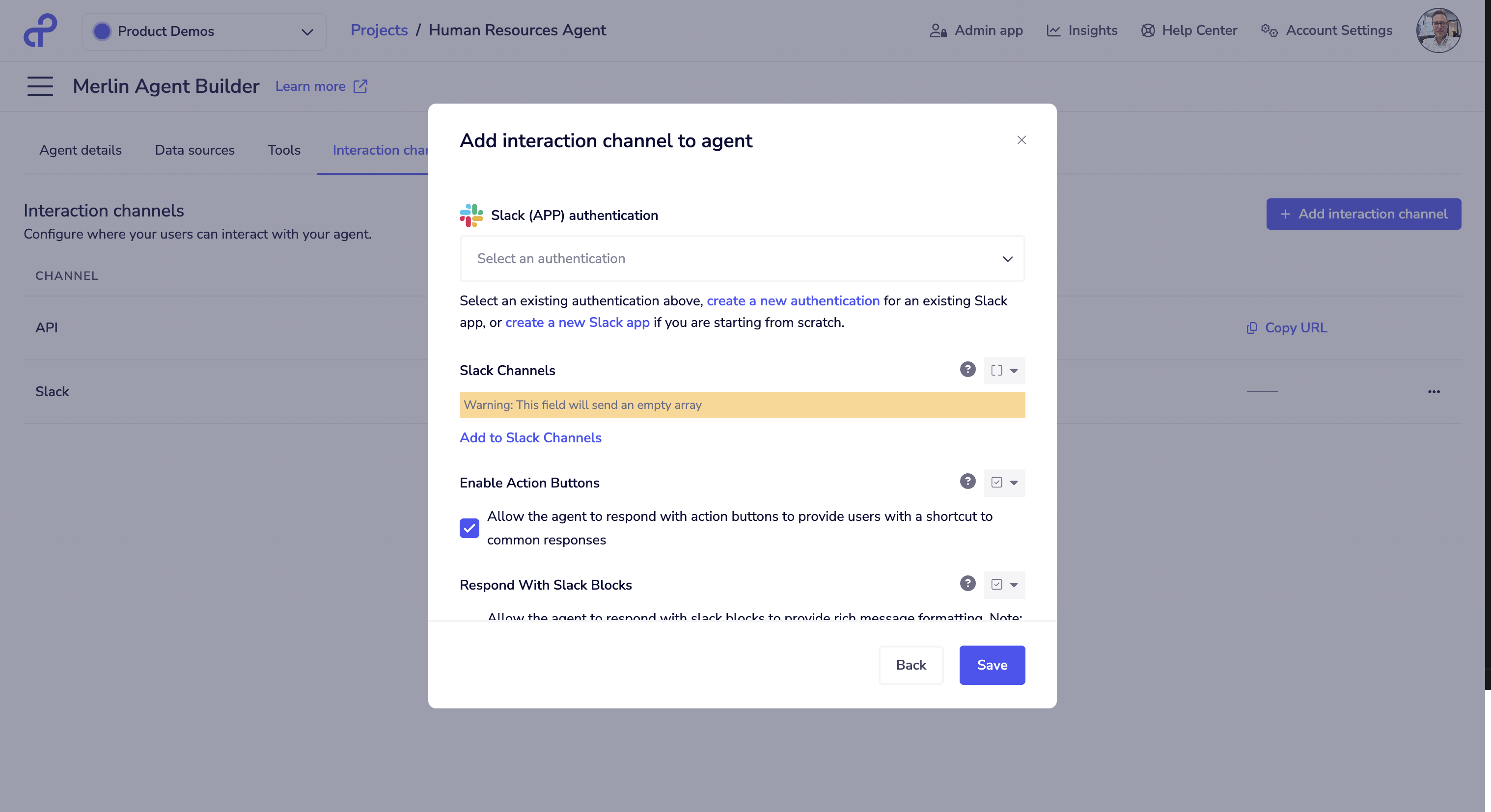
- Navigate to the "Interaction Channels" tab in your Agent builder
- Click "Add interaction channel"
- Select Slack and follow the setup instructions
The guided setup in Agent Builder walks you through:
- Creating or connecting a Slack App
- Installing the app in your workspace
- Configuring channel settings
- Testing the connection
For detailed setup instructions including regional configurations and troubleshooting, see the sections below.
Regional Availability
Tray supports Slack Interaction Channels across multiple regions with different webhook configurations:
| Region | Webhook Base URL | Status |
|---|---|---|
| US | https://webhooks.tray.io/production/ | ✅ Supported |
| EU | https://webhooks.eu1.tray.io/production/ | ✅ Supported |
| APAC | Not Applicable | Additional setup required |
The redirect URL for US and EU regions is automatically configured to the appropriate Webhook Base URL format: webhooks/slack-app/1/app/{appId}/target/{authId}
APAC: Additional Setup Steps
For APAC region deployments, you'll need to manually configure webhook triggers for Slack functionality. This two-part setup ensures your agent can both receive user messages and respond to interactive elements like action buttons:
- Navigate to Interaction Channels in the Agent Builder
- Click the three-dot menu on your Slack interaction and open Interaction Channel Assets
- Replace the trigger in [Core] Slack Message Events with a webhook trigger and copy the public webhook URL
- Replace the trigger in [Core] Slack Interaction Events with a webhook trigger and copy its public webhook URL
- Navigate to your Slack App settings:
- Go to Event Subscriptions, enable Events, and paste the first webhook URL into the Request URL field
- Go to Interactivity & Shortcuts, enable Interactivity, and paste the second webhook URL into the Request URL field
- Verify both webhooks show as "Verified" in your Slack App settings
Both webhooks are required for your agent to handle conversations and interactive elements properly.
Example Slack App Manifest
When creating a Slack App for Tray AI Agents, your app manifest must include specific scopes and event subscriptions. Below is the complete manifest that Tray uses when automatically creating Slack Apps.
This manifest is provided as a reference for:
- Understanding required permissions
- Troubleshooting authentication issues
- Creating custom interaction channels
- Auditing security and compliance
{
    "display_information": {
        "name": "Tray AI Agent",
        "description": "Deploy AI Agents built on Tray directly in your slack instance",
        "background_color": "#906409"
    },
    "features": {
        "app_home": {
            "home_tab_enabled": false,
            "messages_tab_enabled": true,
            "messages_tab_read_only_enabled": false
        },
        "bot_user": {
            "display_name": "Tray AI Agent",
            "always_online": true
        },
        "assistant_view": {
            "assistant_description": "Integrate Tray AI Agents directly into your slack instance",
            "suggested_prompts": []
        }
    },
    "oauth_config": {
        "redirect_urls": [
            "https://auth.tray.io/oauth2/token"
        ],
        "scopes": {
            "bot": [
                "app_mentions:read",
                "assistant:write",
                "channels:history",
                "channels:join",
                "channels:read",
                "chat:write",
                "chat:write.customize",
                "chat:write.public",
                "files:read",
                "groups:history",
                "groups:read",
                "im:history",
                "im:read",
                "im:write",
                "mpim:history",
                "mpim:write",
                "users:read",
                "users:read.email",
                "mpim:read"
            ]
        }
    },
    "settings": {
        "event_subscriptions": {
            "request_url": "https://webhooks.tray.io/production/webhooks/slack-app/1/app/{appId}/target/{authId}",
            "bot_events": [
                "assistant_thread_started",
                "app_mention",
                "message.channels",
                "message.groups",
                "message.im",
                "message.mpim"
            ]
        },
        "interactivity": {
            "is_enabled": true,
            "request_url": "https://webhooks.tray.io/production/webhooks/slack-app/1/app/{appId}/target/{authId}"
        },
        "org_deploy_enabled": false,
        "socket_mode_enabled": false,
        "token_rotation_enabled": false
    }
}
Key Manifest Sections
Bot Scopes -
Define what your bot can access and do in the workspace. These permissions are the minimum required for Tray AI Agents to function properly.
Event Subscriptions -
Configure which Slack events trigger your bot to respond. Includes messages in channels, groups, DMs, and when the bot is mentioned.
Request URL -
The webhook endpoint where Slack sends events. This must match the format specified in the Regional Availability section for your region.
Troubleshooting
Validation Checklist
Before troubleshooting, verify these basics:
- Webhook URL shows "Verified" in Slack Event Subscriptions
- Tray workflow authentication is successful
- Bot appears in your Slack workspace member list
- Bot responds to direct messages
- Bot responds to channel mentions
- No error messages in Tray workflow logs
Common Issues
Webhook Verification Failed
- Cause: Incorrect AppId or authId in redirect URL
- Solution: Double-check both IDs match your Tray authentication and Slack app configuration
- Validation: Ensure webhook URL format exactly matches the Regional Availability specification
Bot Not Responding
- Cause: Missing bot scopes or permissions
- Solution: Verify all required scopes from the manifest reference are granted
- Action: Reinstall the app if scopes were modified after initial installation
Authentication Errors in Tray
- Cause: Incorrect or expired credentials
- Solution: Re-copy credentials from Slack app settings page
- Important: Use Bot User OAuth Token, not User OAuth Token
Bot Not Visible in Workspace
- Cause: App installation incomplete or failed
- Solution: Check that Slack Settings > Install App shows "Installed" status
- Action: Use the "Reinstall App" option if necessary
Agent Responds Multiple Times
- Cause: Bot message filtering not working correctly
- Solution: Check that the bot is not listening to its own messages
- Validation: Verify workflow logs show bot messages are being filtered out
Thread Context Lost
- Cause: Session ID not being maintained across thread messages
- Solution: Ensure thread_ts is being correctly passed in all messages
- Important: Each Slack thread creates a unique session:
slack_channel_{channel}_thread_{thread_ts}
Getting Help
If issues persist after troubleshooting:
- Check the Interaction Channel Assets workflows for error logs
- Review the execution history in Tray platform for failed steps
- Contact Tray support with your workflow execution IDs
- Provide screenshots of Slack App event subscription configuration